
To unlock the production page, you need to first complete a closed test of your app. This guide will help you configure the closed test settings.
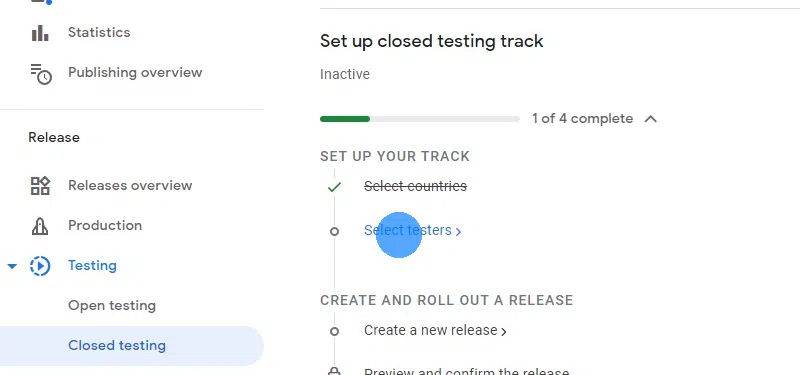
Go to the closed testing page.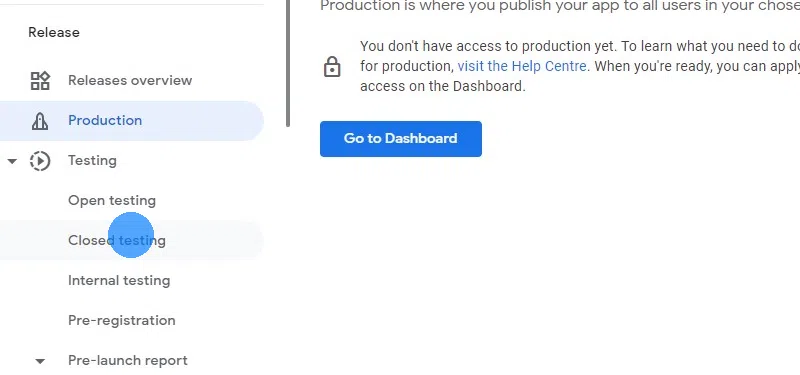
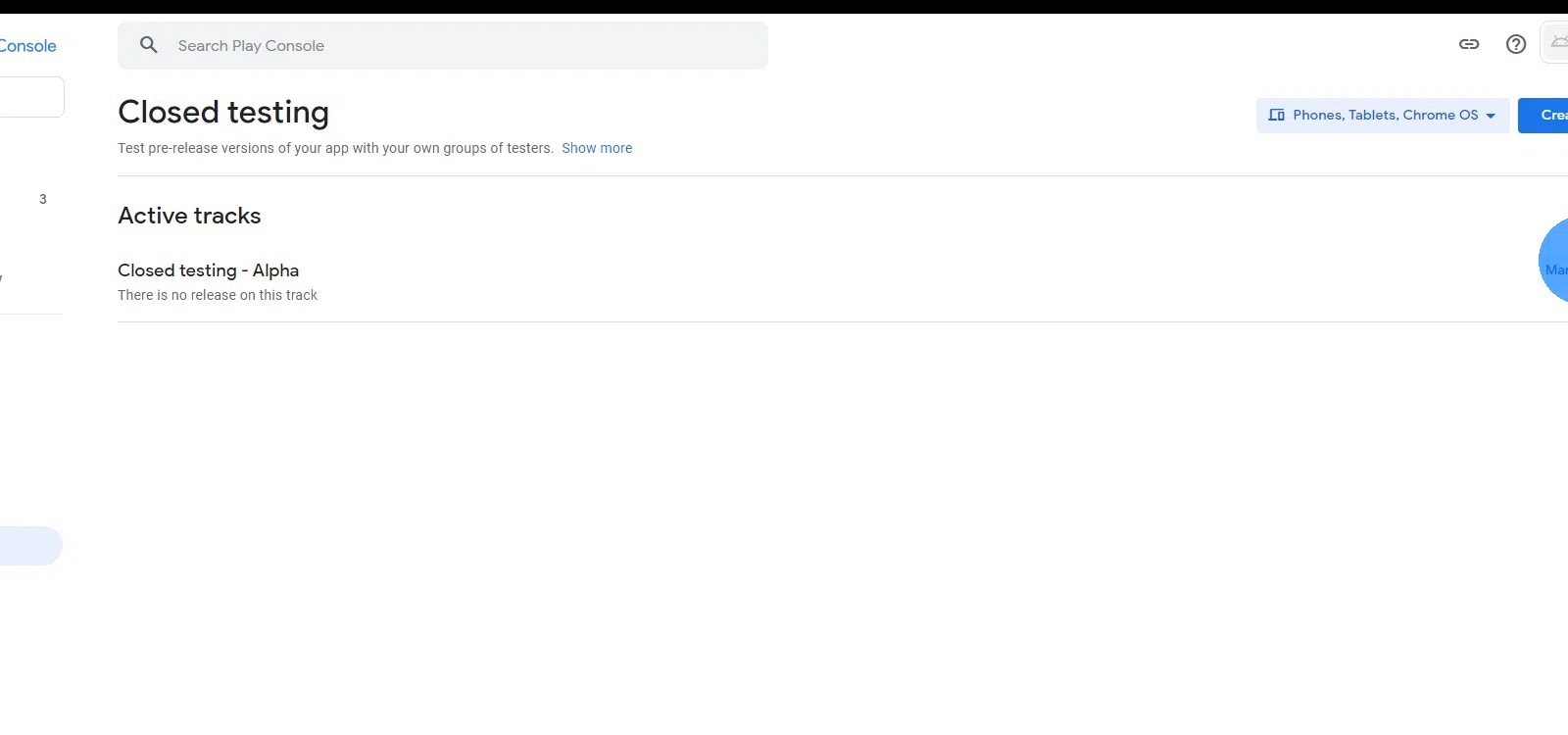
On the "Closed Testing - Alpha" track, click "Manage track".
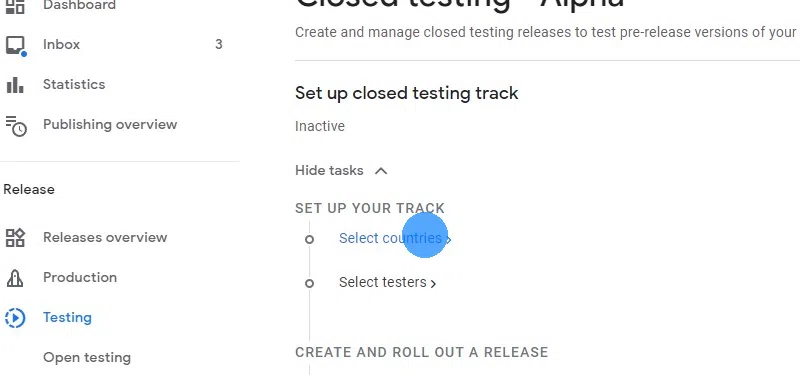
Go through the steps one by one, starting with selecting countries.
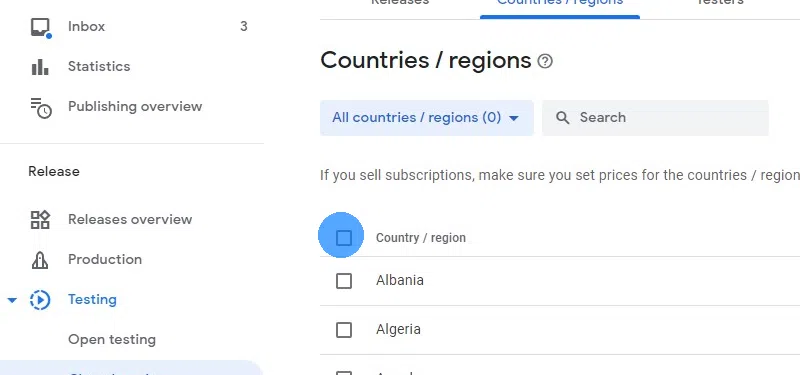
Select all countries so you can have testers from all around the world. There are no downsides to selecting all countries. Later, when you're publicly releasing the app, you can still limit it to the countries you want.
Click "Save" at the bottom right.
Continue with the next step: "Select testers".
Google requires that you have at least 12 testers who download the app and keep it installed for 14 days. Only then will you be able to publicly publish your app in the Google Play Store.
Click here if you have the gmail e-mail address of 12 Android users who are willing to download and test your app for 14 days.
Click here if you don't have 12 testers for your app yet. Since many of our customers had difficulty finding 12 testers, we have partnered with an app testing agency that can download and test your app.
Click "Create email list"
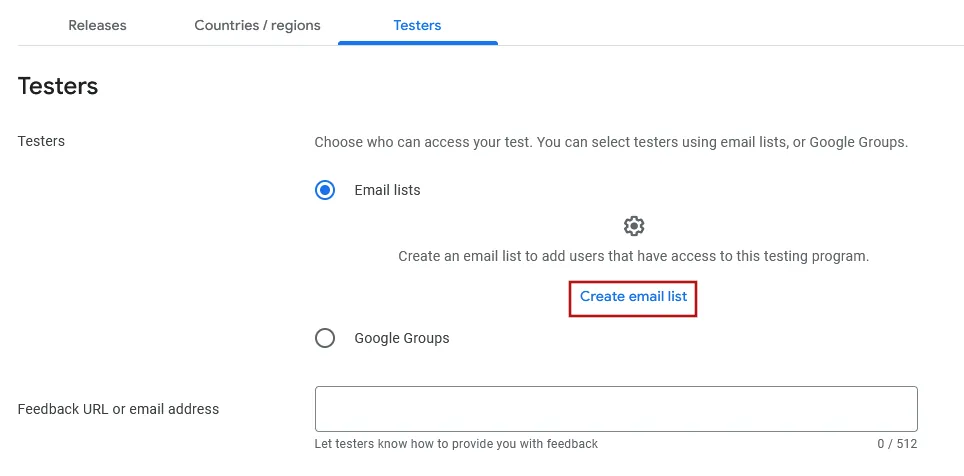
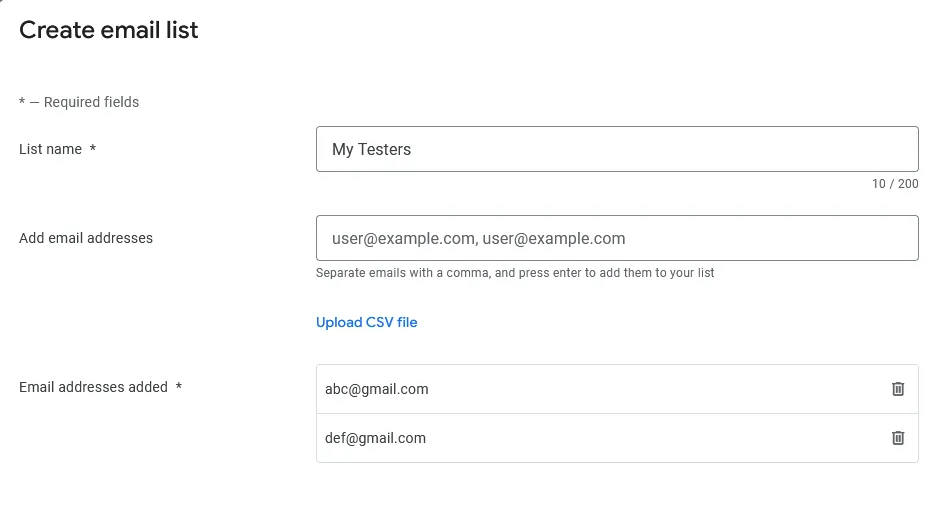
Enter any name for your group of testers.
Afterwards, you can add your testers by entering their Google account e-mail addresses (usually their @gmail e-mail address).
You can either enter each e-mail one by one, or enter multiple e-mails separated by a comma, like abc@gmail.com,def@gmail.com
Make sure you press the enter key after filling out the e-mail field.
Try to add as many people as possible to make sure you have at least 12 people who keep the app installed for at least 14 days. Of course you should ask the people beforehand whether they are open to helping you test your app. The testers don't need to be employees of your company, it can for example be your friends, family or customers. They just need an Android device and you must have their Gmail address so you can add them here.
The app testing company charges a one-time fee of $25 (excluding tax). The agency's testers will install your app for 14 days to fulfill Google's testing requirement.
Purchase App TestingAfter your purchase, reload this page so you can continue with the remaining steps (granting the app testers access to your app and more).
In the next field you can enter your e-mail address, so your testers know where they can contact you about app issues.
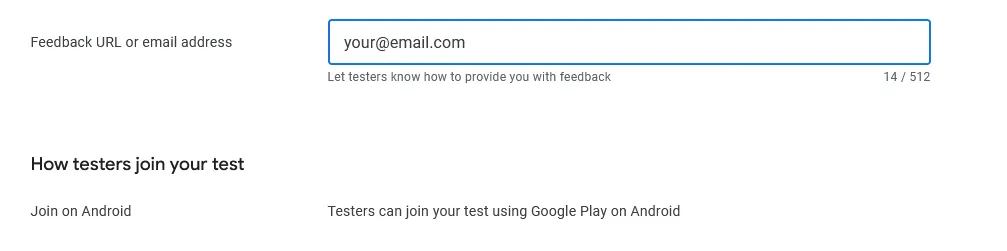
Click "Save" at the bottom right.
I've completed all the steps in this guideOnce you've completed all the steps in this guide, please click this button so you can continue with the next guides.