Ever wanted to make it easier for your users to find the pages they visit most often? With our favorite feature, users can mark pages as favorites, organize them into lists, and quickly access them whenever they need. It’s a simple but powerful addition that enhances app navigation and keeps users engaged.
How the Favorite Feature Works
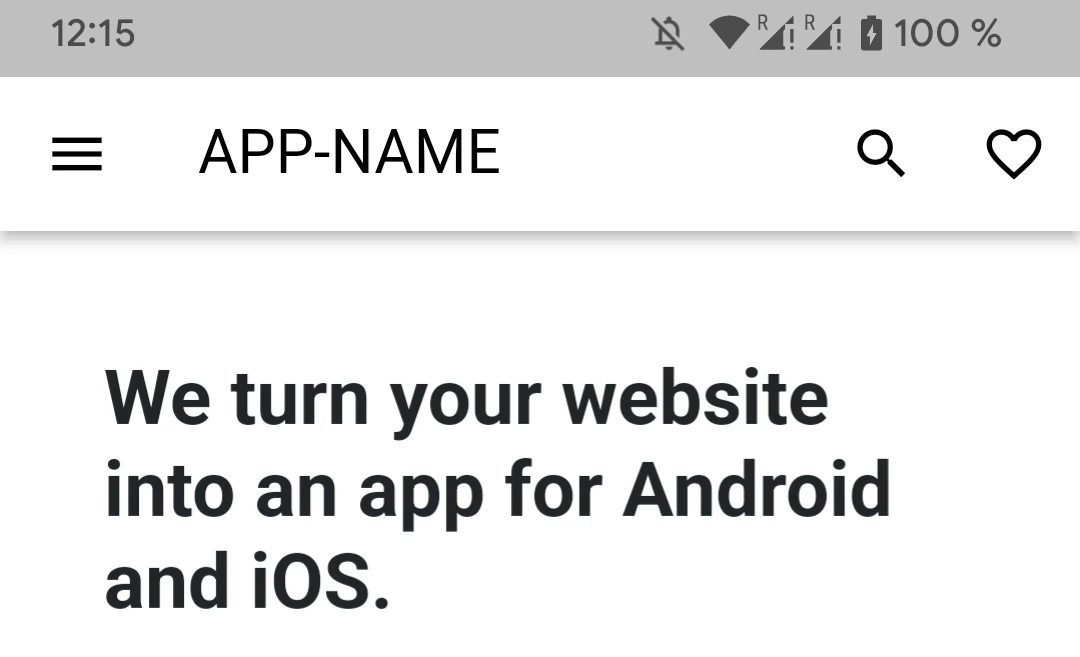
Once enabled, users will see a heart icon in the app bar. Tapping it allows them to save the current page as a favorite. Users can:
Save pages to their favorites
Create their own favorite lists
View all their saved favorites
Import and export favorites to other devices
Enabling the Favorite Feature in Your App
Activating favorites in your app is easy! Simply turn on the feature in your webtoapp.design dashboard and users will immediately have access to it.
Categorizing Favorites (Optional)
Want favorites to be organized into categories? You can define a Favorite Category Extractor Script. This script runs on the page that is being favorited and determines the category name dynamically.
For example, if you want to categorize favorites based on the first part of the URL, you can use this script:
window.location.pathname.split("/")[1];If no script is provided, favorites will remain uncategorized.
Adding Images to Favorites (Optional)
To make favorites even more visually appealing, you can attach images to them. This is done by specifying a Favorite Image Extractor Script. The script runs on the page that is being favorited and should return an image URL.
For example, to use the og:image (which is also used for link previews on social media), you can use this script:
document.querySelector('meta[property="og:image"]').content;If no script is provided, favorites will be saved without an image.
A Look at the Favorite Feature in Action
Here’s how the feature appears in the app:
Favorite Button in the App Bar
Users can tap the heart icon to favorite a page instantly.
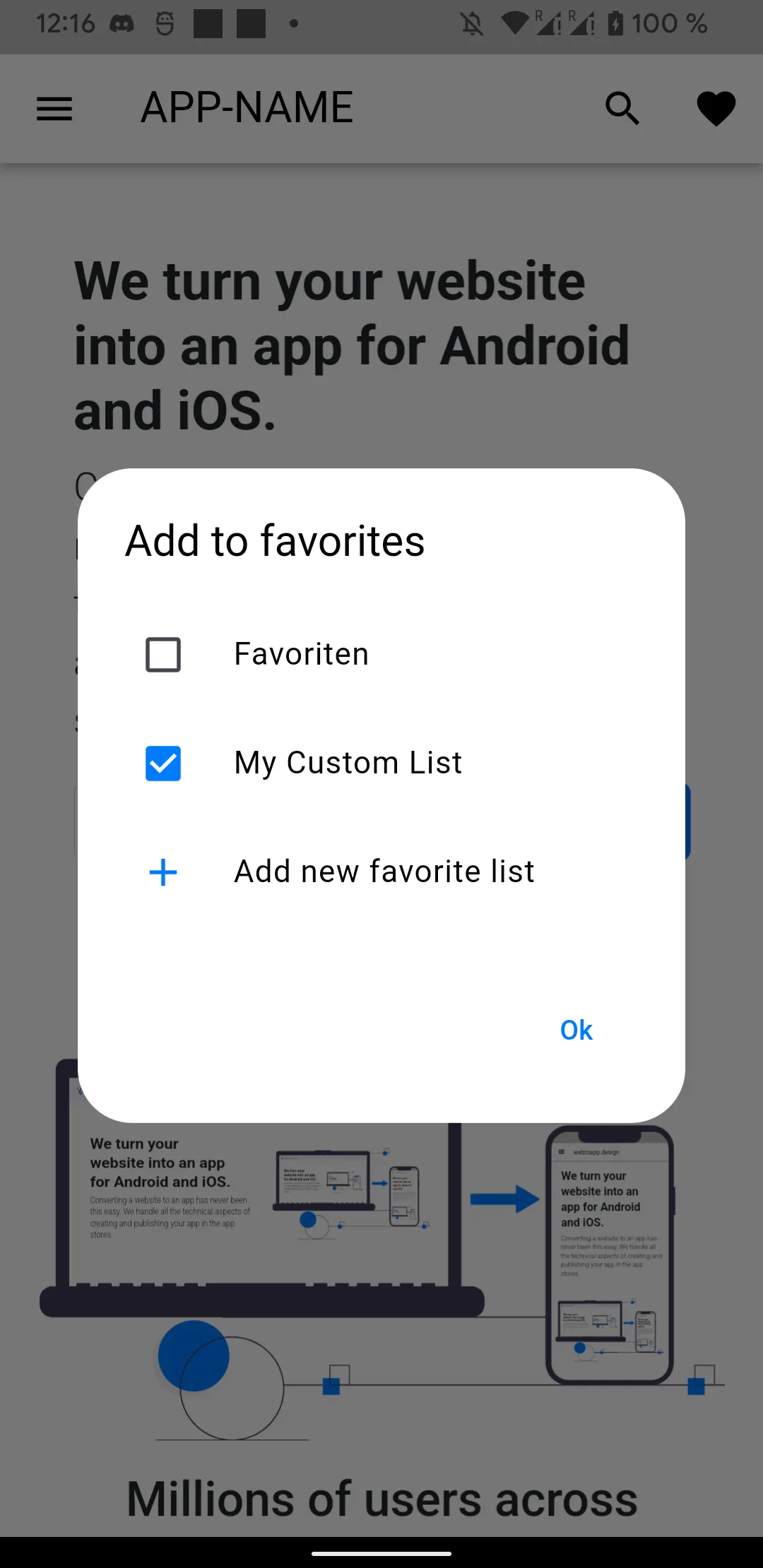
Add to Favorites Dialog
Users can choose an existing list or create a new one to store the favorite.
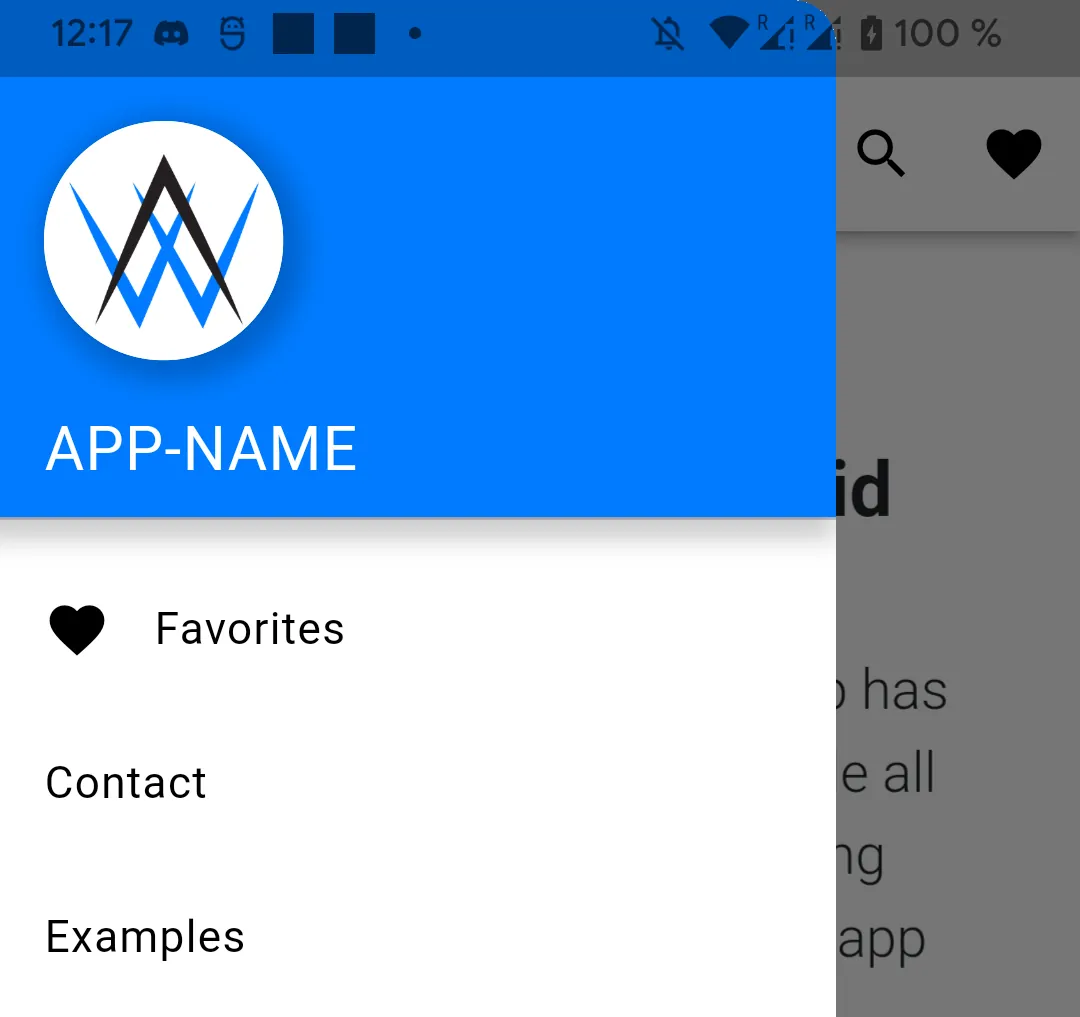
Favorites in the Drawer Menu
A button in the app menu lets users access their saved favorites quickly.
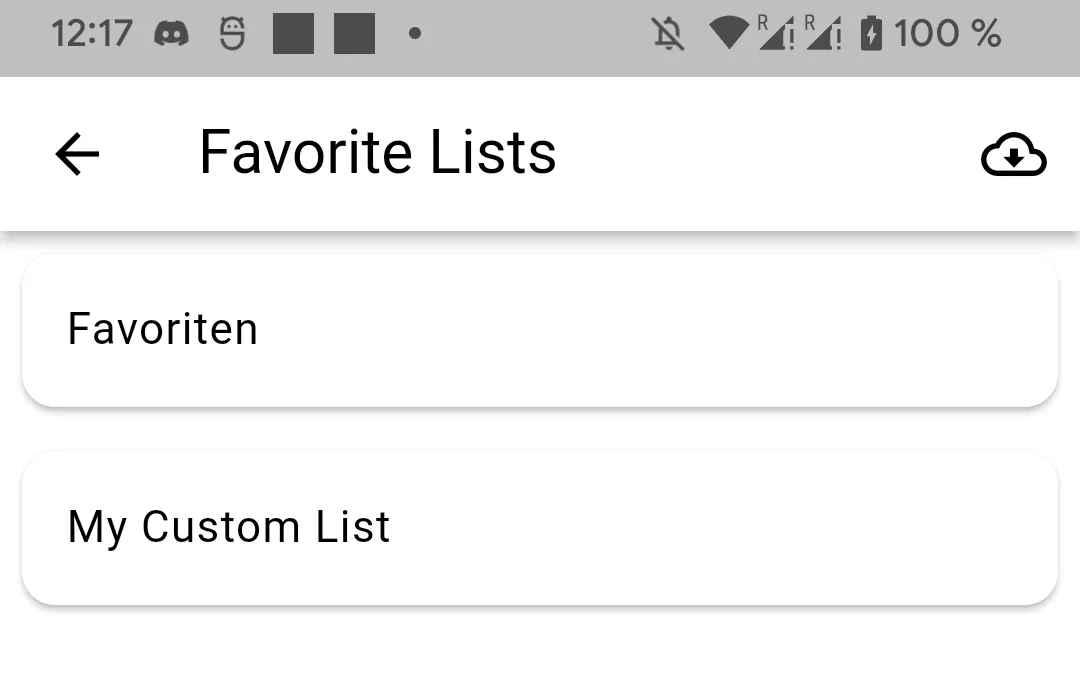
Favorite List Overview Page
Users can see an overview of all their favorite lists.
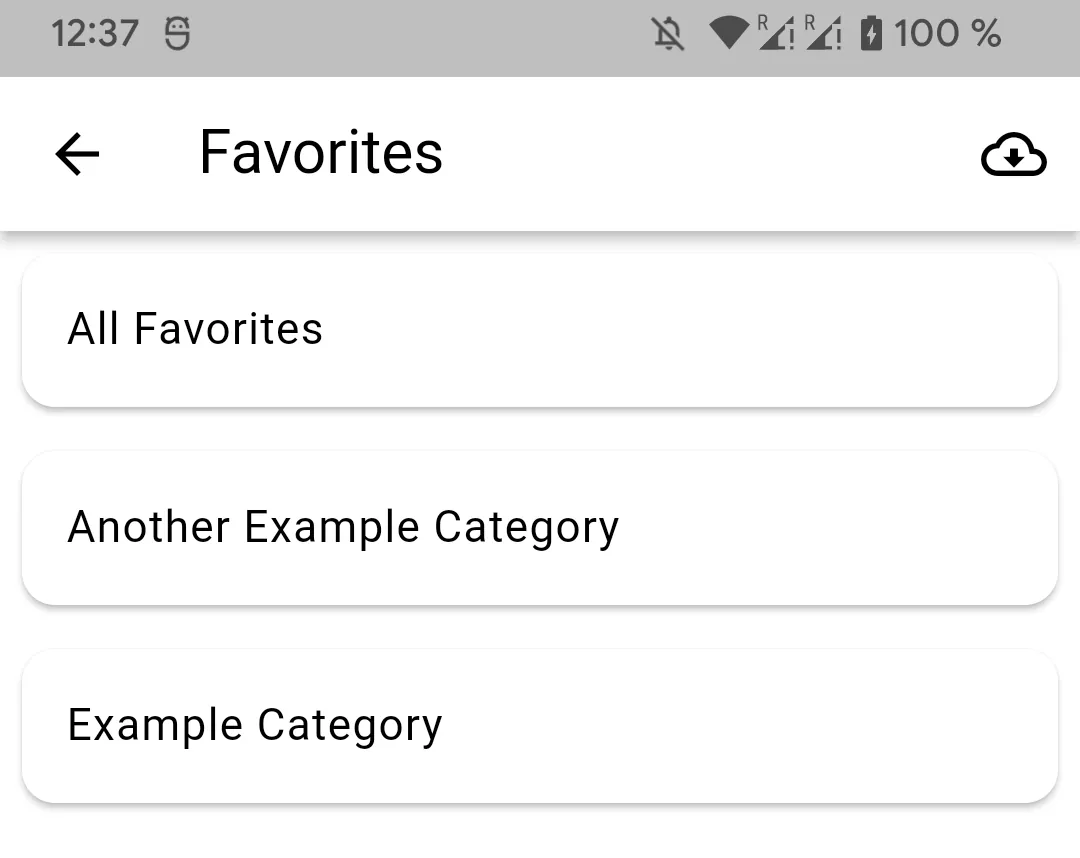
Category Overview Page (If Enabled)
If categories are set up, users can navigate their favorites based on categories (only in the default favorites list, not custom lists).
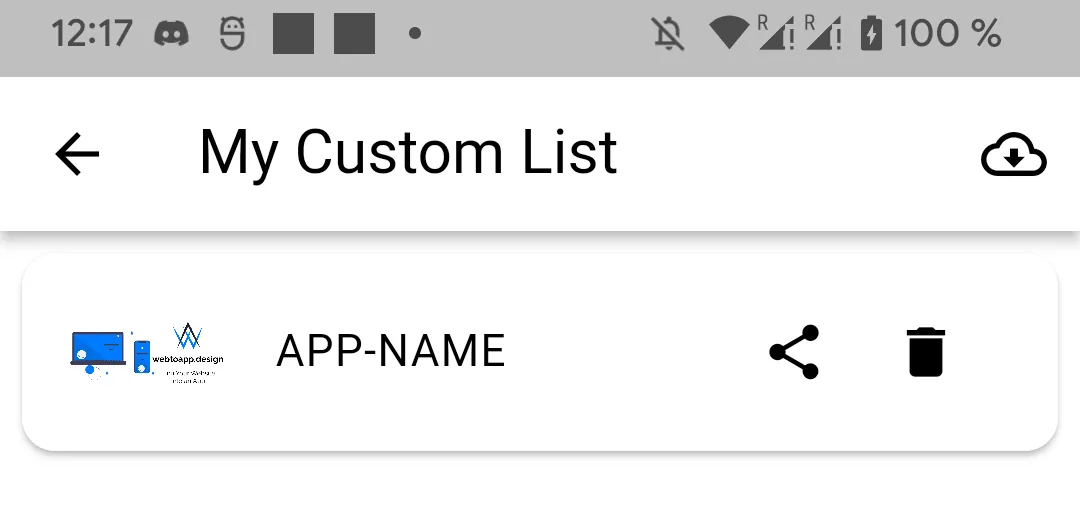
Page Showing Saved Favorites
Here's how the actual favorites are displayed after selecting a list.
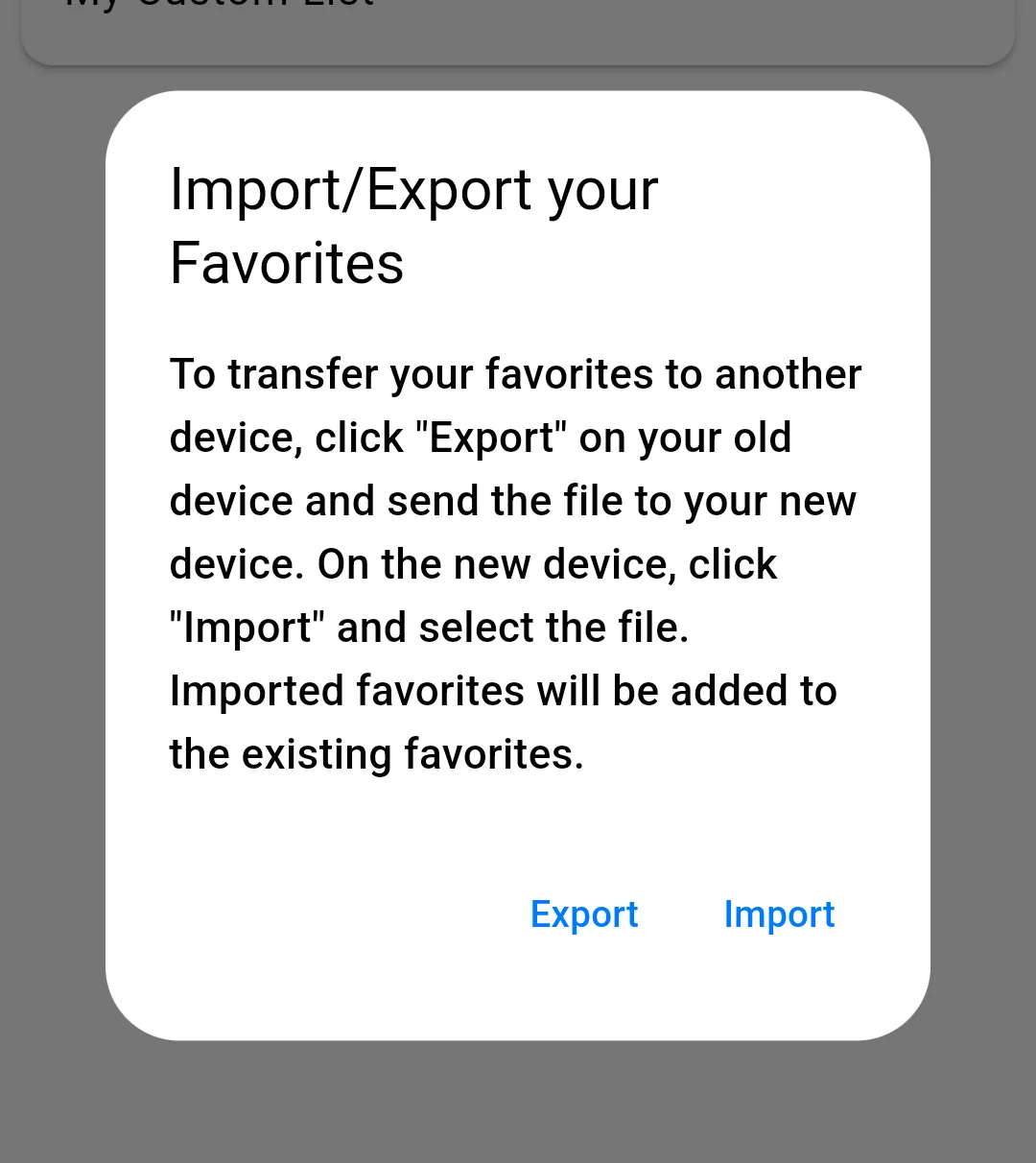
Import/Export Favorites
Users can export their favorites via the system share dialog. That way they can save the favorites file locally or in the cloud or even directly share the file via e-mail or messaging apps. Once sent to their other device, they can import the favorites by selecting the exported file in a file selector screen.
Why This Feature Is a Game-Changer
The favorite feature makes your app more intuitive and user-friendly. Users can effortlessly bookmark their most-visited pages, organize them in ways that suit them best, and transfer their favorites between devices. With complete control over how favorites are categorized and displayed, you can tailor the experience to fit your app's needs perfectly.
With the favorite feature, your app becomes more user-friendly, organized, and engaging. Try it out today and let your users experience the convenience firsthand!