This Google Play rejection reason can have different causes. The screenshot attached to the rejection will show you which one it is.
Check the rejection screenshot first
The screenshot attached to the app rejection email contains important information to diagnose the cause of the rejection.
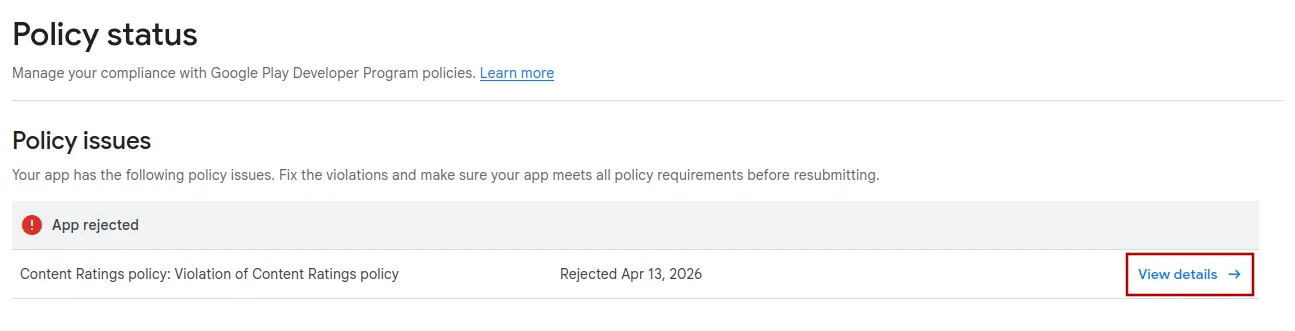
You'll be able to see the screenshot showing the issue on the detail page. This is the best clue for figuring out the exact rejection reason.
The app was disabled
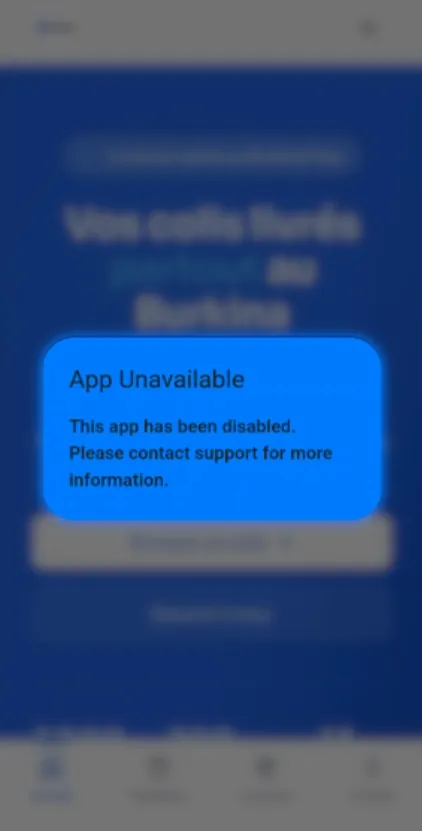
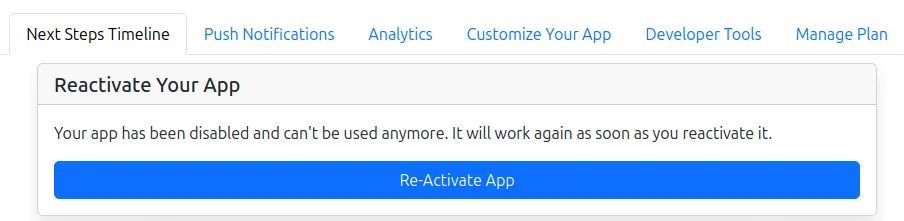
The most common cause of this rejection is that your webtoapp.design subscription expired during the review. In that case, the reviewer sees the app disabled dialog instead of being able to use the app normally.
The app rejection screenshot from Google will look similar to the one below:
To resolve this, open your app dashboard and reactivate your app there.
Submitting the app for review again
If this was the last or only app rejection reason, please follow these steps to submit your app for review again:
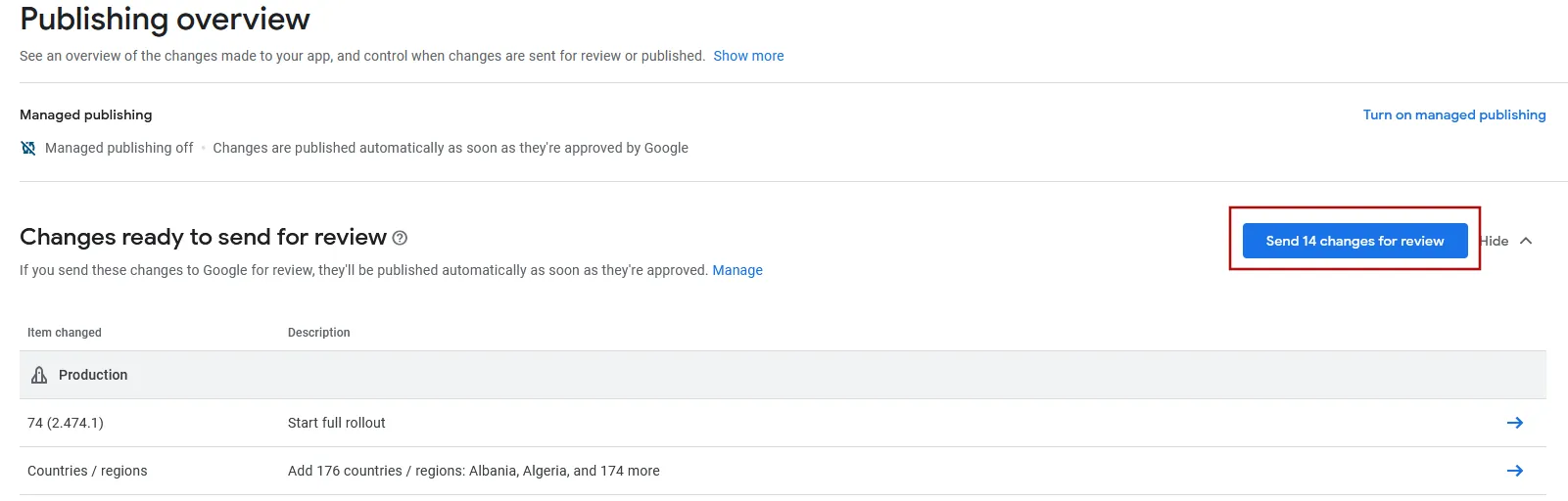
Go to the publishing overview in the Google Play Console.
Submit the changes for review using the button at the top right.