How to Start the Android Developer Verification for Your Package Name

Posted on 2. May 2026 by Jan Bunk

A humanoid robot registering a package name on a verification console, digital art

You are viewing a preview of this guide. Please log in to complete it!

Open the Android developer verification page in the Google Play Console.

Click "Register package name".
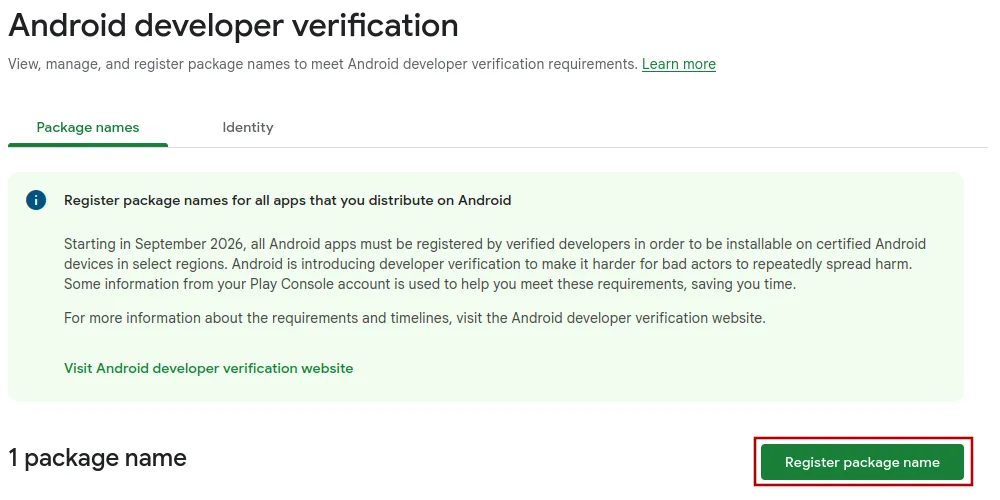
A screenshot of the android developer verification page with the button to register a package name highlighted.

In the dialog that opens, enter your package name and app name and click "Next".

Package name:

App name:
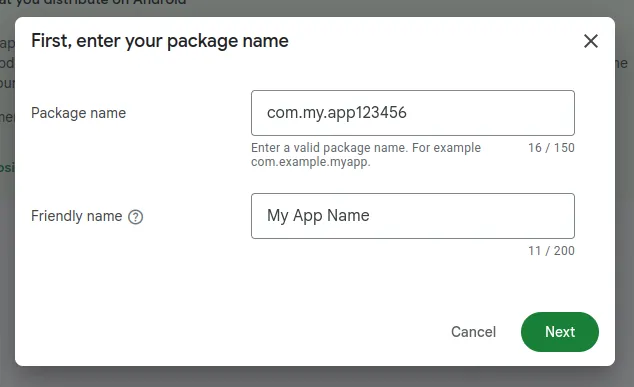
A screenshot of the dialog where you can enter your package name and app name.

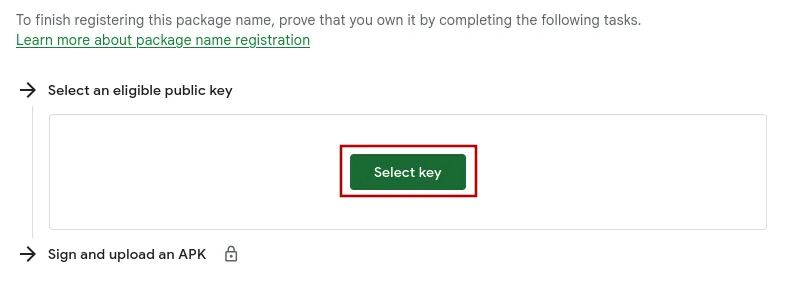
Click "Select key".

A screenshot of the screen where you can select a public key.

In the dialog that opens, there should be only one key listed. Select it and then click "Add key".
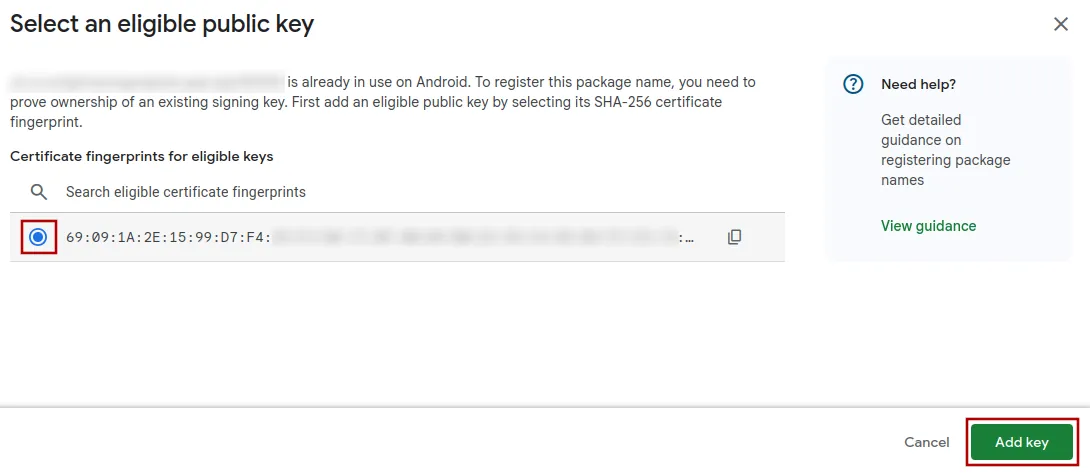
A screenshot of the dialog with the eligible keys.

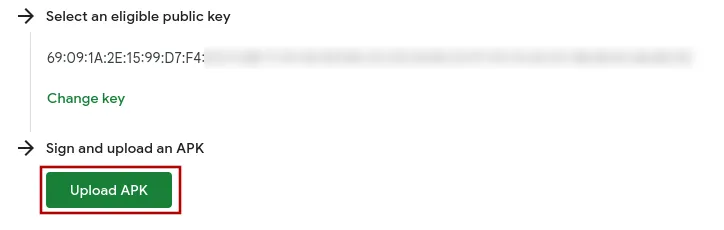
Click "Upload APK".

A screenshot of the upload apk button on the developer verification page.

Copy the package name identifier snippet that you see on Google's page and paste it in this field:

A screenshot of the upload APK dialog with the package name identifier snippet highlighted.

Click the button below to submit the package name identifier snippet to us. The next guide will give you the APK file that you can upload in the Google Play Console to complete the package name registration.

Make sure to click this button, otherwise we won't receive the entered information and you will need to do the steps again.

Author Jan Bunk
Written by
Jan Bunk

With a background in computer science, Jan founded webtoapp.design in 2019 and developed the underlying software to convert websites into apps. With experience and feedback gathered from hundreds of published apps, he strives to write easy to follow guides that help you with everything related to app creation, publishing and maintenance.