Apple a rejeté l’application, car elle propose une connexion par l’intermédiaire d’un service tiers, tel que Google ou Facebook, sans option de connexion équivalente répondant aux exigences d’Apple en matière de confidentialité (en pratique, il s’agit de « Se connecter avec Apple »).
Pour la plupart des applications basées sur un site web, la solution la plus simple consiste à supprimer les options de connexion via les réseaux sociaux dans l’application et à permettre aux utilisateurs de se connecter avec le système de comptes propre à votre site web.
Masquez les boutons de connexion via des services tiers
Commencez par vérifier que les utilisateurs peuvent créer un compte et se connecter sans passer par un fournisseur de connexion sociale, par exemple avec une adresse e-mail et un mot de passe. Les utilisateurs existants qui se sont initialement inscrits avec Google ou Facebook doivent également disposer d’un moyen d’accéder à leur compte existant.
Vous pouvez supprimer les boutons de connexion via les réseaux sociaux de votre site web ou les masquer uniquement dans l’application. Ouvrez les paramètres de personnalisation du site web de votre application.Notre guide explique comment masquer des éléments du site web à l’aide des sélecteurs Masquer des éléments.
Vérifiez tous les endroits où les utilisateurs peuvent se connecter ou créer un compte, notamment les pages de connexion, les pages d’inscription, les pages de paiement et les fenêtres contextuelles de connexion. Masquez les options de connexion via des services tiers dans chacun de ces endroits, tout en conservant votre propre formulaire de connexion accessible.
Autre solution : conservez la connexion via les réseaux sociaux
Si la connexion via les réseaux sociaux est importante pour votre application, vous pouvez intégrer Se connecter avec Apple à votre site web.
Soumettre à nouveau l’app à l’examen
Si c’était la dernière ou la seule raison du rejet de l’app, veuillez suivre ces étapes pour soumettre à nouveau votre app à l’examen :
Accédez à la page de version en cliquant sur « Distribution » en haut de votre écran ou sur le numéro de version dans le menu à gauche.

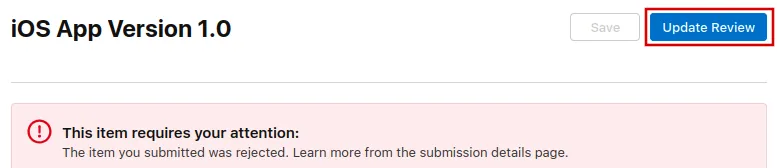
Cliquez maintenant sur le bouton « Update Review » en haut à droite.
Ensuite, cliquez sur « Resubmit to App Review » sur la page suivante qui s’ouvre.

Un message devrait alors s'afficher : "Waiting for Review (En attente d’examen)".