Apple rechazó la app porque ofrece un inicio de sesión de terceros, como Google o Facebook, sin una opción de inicio de sesión equivalente que cumpla los requisitos de privacidad de Apple (en la práctica, se trata de «Iniciar sesión con Apple»).
Para la mayoría de las apps basadas en sitios web, la solución más sencilla es eliminar las opciones de inicio de sesión con redes sociales dentro de la app y permitir que los usuarios inicien sesión mediante el sistema de cuentas propio de tu sitio web.
Oculta los botones de inicio de sesión de terceros
Primero, asegúrate de que los usuarios puedan crear una cuenta e iniciar sesión sin un proveedor de inicio de sesión social, por ejemplo, mediante una dirección de correo electrónico y una contraseña. Los usuarios actuales que se registraron originalmente con Google o Facebook también deben disponer de una forma de acceder a sus cuentas existentes.
Puedes eliminar los botones de inicio de sesión social de tu sitio web u ocultarlos únicamente dentro de la app. Abre los ajustes de personalización del sitio web de tu app.Nuestra guía explica cómo ocultar elementos del sitio web mediante los selectores para ocultar elementos.
Comprueba todos los lugares en los que los usuarios pueden iniciar sesión o crear una cuenta, incluidas las páginas de inicio de sesión, las páginas de registro, las páginas de pago y las ventanas emergentes de inicio de sesión. Oculta las opciones de inicio de sesión de terceros en cada uno de ellos, pero mantén disponible tu propio formulario de inicio de sesión.
Alternativa: mantén el inicio de sesión social
Si el inicio de sesión social es importante para tu app, puedes integrar Iniciar sesión con Apple en tu sitio web.
Enviar la app a revisión de nuevo
Si este fue el último o el único motivo de rechazo de la app, seguí estos pasos para enviar tu app a revisión de nuevo:
Andá a la página de la versión haciendo clic en "Distribution" en la parte superior de la pantalla o en el número de versión en el menú de la izquierda.

Ahora hacé clic en el botón "Update Review" arriba a la derecha.
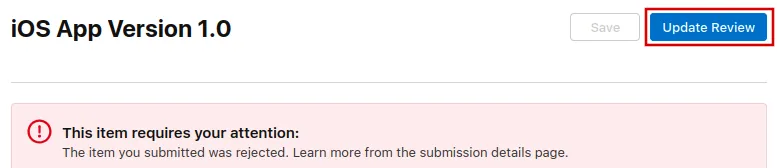
Después, hacé clic en "Resubmit to App Review" en la siguiente página que se abre.

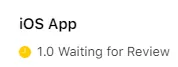
Entonces debería decir "Esperando revisión" (Waiting for Review).