A Apple rejeitou o aplicativo porque os usuários podem fazer doações beneficentes dentro dele, mas sua organização não parece ser uma organização sem fins lucrativos aprovada pela Apple.
Para a maioria dos aplicativos baseados em sites, a solução mais fácil é abrir a página de doações fora do aplicativo, no navegador do usuário. Como alternativa, você pode ocultar os botões de doação dentro do aplicativo.
Opção 1: Abrir a página de doações fora do aplicativo
Abra as configurações de navegação do seu aplicativo. Na seção “URLs para Abrir Externamente”, adicione o endereço da sua página de doações à lista de URLs.
Verifique todos os links de doação no seu aplicativo. Se botões diferentes levarem a páginas de doações diferentes, adicione cada URL. Se as URLs variarem, por exemplo por conterem parâmetros de consulta diferentes, você pode usar uma expressão regular na mesma seção de configurações para abranger todas elas.
Depois, teste os botões de doação no seu aplicativo iOS. Eles devem abrir a página de doações no Safari ou no navegador padrão do usuário, com todo o processo de doação ocorrendo fora do aplicativo.
Opção 2: Ocultar os botões de doação dentro do aplicativo
Se você não precisa que os usuários façam doações pelo aplicativo, oculte os botões, formulários e links de doação dentro dele. Verifique os menus, o rodapé e os pop-ups do site, além de todas as páginas de arrecadação de fundos que os usuários podem acessar. Este guia explica as diferentes formas de ocultar partes do seu site dentro do app.
Alternativa: Obter aprovação como organização sem fins lucrativos
Se você quer arrecadar doações beneficentes dentro do aplicativo, sua organização sem fins lucrativos precisa concluir o processo de aprovação da Apple. Apenas estar registrada como organização sem fins lucrativos ou ter uma conta de desenvolvedor de organização não é suficiente.
A Apple aceita a aprovação de organizações sem fins lucrativos pela Benevity em qualquer localidade, ou pela Candid para organizações sediadas nos Estados Unidos.
Explique suas alterações à Apple
Responda à Apple e explique qual solução você implementou. Se os links de doação agora abrem fora do aplicativo, descreva os passos para encontrar um botão de doação e confirme que o processo de doação abre no navegador. Se você removeu as opções de doação, informe à Apple de onde elas foram removidas. Se sua organização sem fins lucrativos já é aprovada, forneça os detalhes da aprovação em vez disso.
Se sua organização sem fins lucrativos já é aprovada pela Benevity ou pela Candid, confirme esse status na sua resposta e adicione também os detalhes da aprovação à seção de informações para análise do aplicativo no App Store Connect.
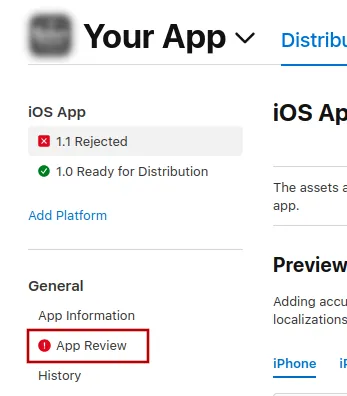
Pra enviar uma mensagem pra Apple, clica em "App Review".
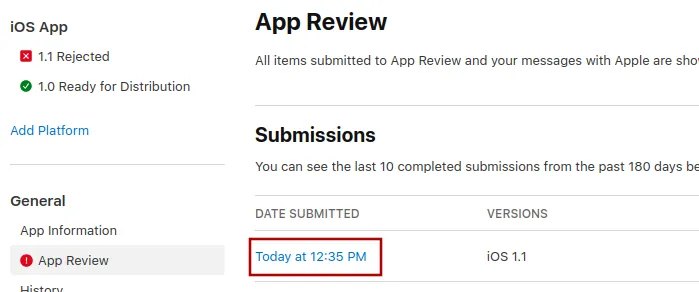
Lá, seleciona o envio mais recente.
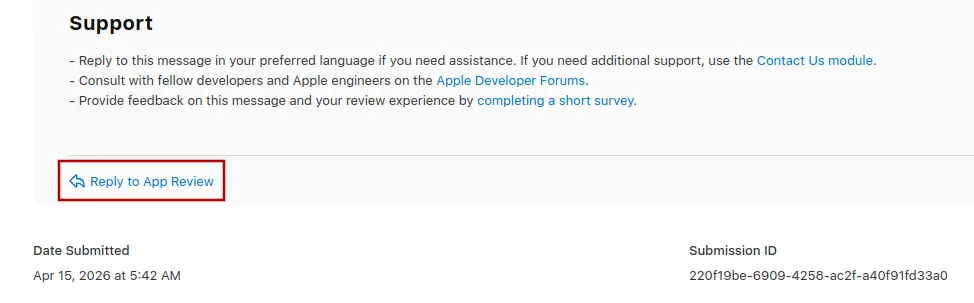
Agora tu pode rolar até o final da mensagem de rejeição da Apple e clicar em "Reply to App Review" e escrever tua mensagem no pop-up que abrir.
Enviando o app pra revisão de novo
Se esse foi o último (ou o único) motivo de rejeição do app, segue estes passos pra enviar teu app pra revisão de novo:
Vai pra página da versão clicando em "Distribution" no topo da tela ou no número da versão no menu à esquerda.

Agora clica no botão "Update Review" no canto superior direito.
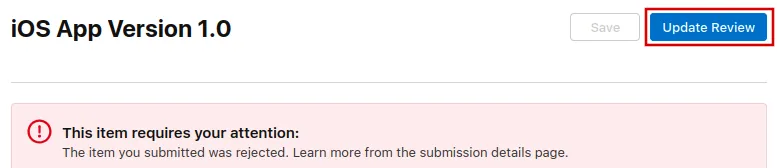
Depois, clica em "Resubmit to App Review" na próxima página que abrir.

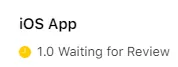
Deve então dizer "Waiting for Review".