Apple heeft de app afgewezen omdat gebruikers er donaties aan goede doelen in kunnen doen, maar je organisatie lijkt geen door Apple goedgekeurde non-profitorganisatie te zijn.
Voor de meeste apps die op een website zijn gebaseerd, is de eenvoudigste oplossing om de donatiepagina buiten de app in de browser van de gebruiker te openen. Je kunt ook de donatieknoppen in de app verbergen.
Optie 1: Open de donatiepagina buiten de app
Open de navigatie-instellingen van je app. Voeg in het gedeelte ‘URL's om extern te openen’ het adres van je donatiepagina toe aan de lijst met URL's.
Controleer elke donatielink in je app. Als verschillende knoppen naar verschillende donatiepagina's leiden, voeg dan elke URL toe. Als de URL's variëren, bijvoorbeeld doordat ze verschillende queryparameters bevatten, kun je in hetzelfde instellingengedeelte een reguliere expressie gebruiken om ze allemaal te omvatten.
Test daarna de donatieknoppen in je iOS-app. Ze moeten de donatiepagina in Safari of de standaardbrowser van de gebruiker openen, zodat het hele donatieproces buiten de app plaatsvindt.
Optie 2: Verberg de donatieknoppen in de app
Als gebruikers niet vanuit de app hoeven te doneren, verberg dan de donatieknoppen, formulieren en links in de app. Controleer de menu's, voettekst en pop-ups van de website en alle pagina's voor fondsenwerving die gebruikers kunnen bereiken. Deze gids legt de verschillende manieren uit om delen van je website in de app te verbergen.
Alternatief: Laat je non-profitorganisatie goedkeuren
Als je in de app donaties aan goede doelen wilt inzamelen, moet je non-profitorganisatie het goedkeuringsproces van Apple doorlopen. Alleen geregistreerd staan als non-profitorganisatie of een ontwikkelaarsaccount voor organisaties hebben, is niet voldoende.
Apple accepteert goedkeuring van non-profitorganisaties via Benevity voor alle locaties, of via Candid voor non-profitorganisaties die in de Verenigde Staten zijn gevestigd.
Leg je wijzigingen uit aan Apple
Antwoord Apple en leg uit welke oplossing je hebt toegepast. Als donatielinks nu buiten de app openen, beschrijf dan de stappen om een donatieknop te vinden en bevestig dat het donatieproces in de browser wordt geopend. Als je de donatiemogelijkheden hebt verwijderd, vertel Apple dan waar je ze hebt verwijderd. Als je non-profitorganisatie al is goedgekeurd, geef dan in plaats daarvan de gegevens van de goedkeuring.
Als je non-profitorganisatie al is goedgekeurd door Benevity of Candid, bevestig die status dan in je antwoord en voeg de gegevens van de goedkeuring ook toe aan het gedeelte met informatie voor de appbeoordeling in App Store Connect.
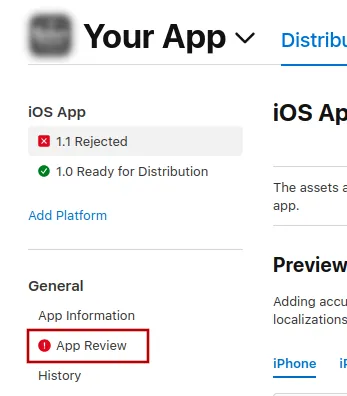
Om Apple een bericht te sturen, klik je op "App Review".
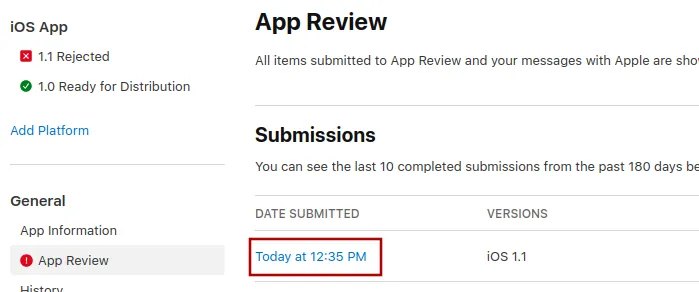
Selecteer daar de nieuwste indiening.
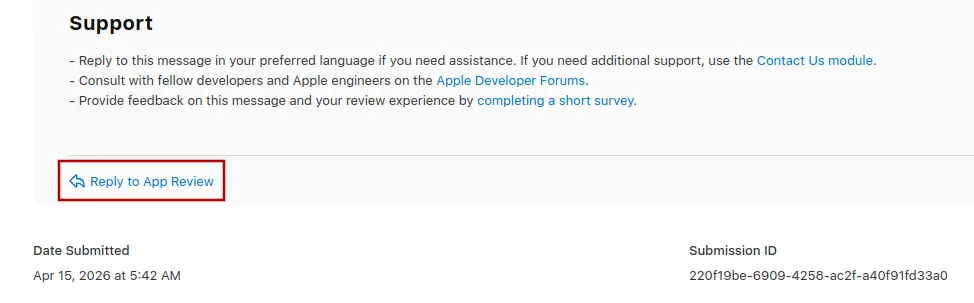
Nu kun je naar beneden scrollen tot onderaan Apple’s afkeuringsbericht en op "Reply to App Review" klikken en je bericht schrijven in de popup die opent.
De app opnieuw indienen voor review
Als dit de laatste of enige reden was voor de afkeuring van je app, volg dan deze stappen om je app opnieuw in te dienen voor review:
Ga naar de versiepagina door bovenaan je scherm op "Distribution" te klikken of op het versienummer in het menu links.

Klik nu rechtsboven op de knop "Update Review".
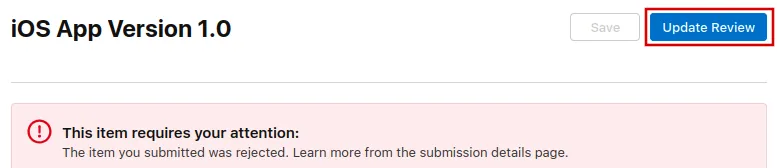
Klik daarna op "Resubmit to App Review" op de volgende pagina die opent.

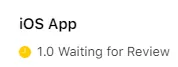
Er moet dan staan ‘Waiting for Review’ (‘Wachten op beoordeling’).