How to Upload a Closed Test Release for Your Android App

Posted on 20. February 2026 by Jan Bunk

A humanoid robot sending a package through a release pipeline, digital art

You are viewing a preview of this guide. Please log in to complete it!
Go to the closed testing page.

On the "Closed Testing - Alpha" track, click "Manage track" if you are not already there.

Click "Create new release" at the top right.
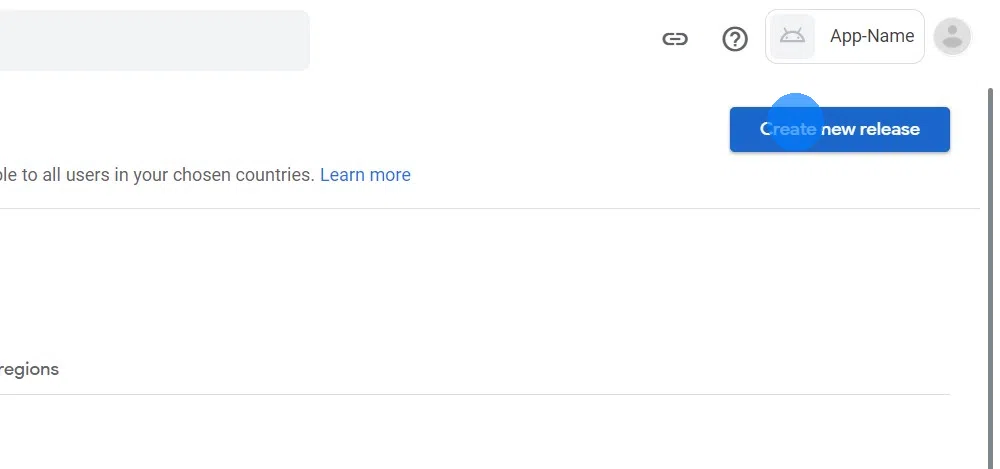
Click "Create new release" at the top right.Download your app as an .aab file

Upload the .aab file you just downloaded in the Google Play Console.
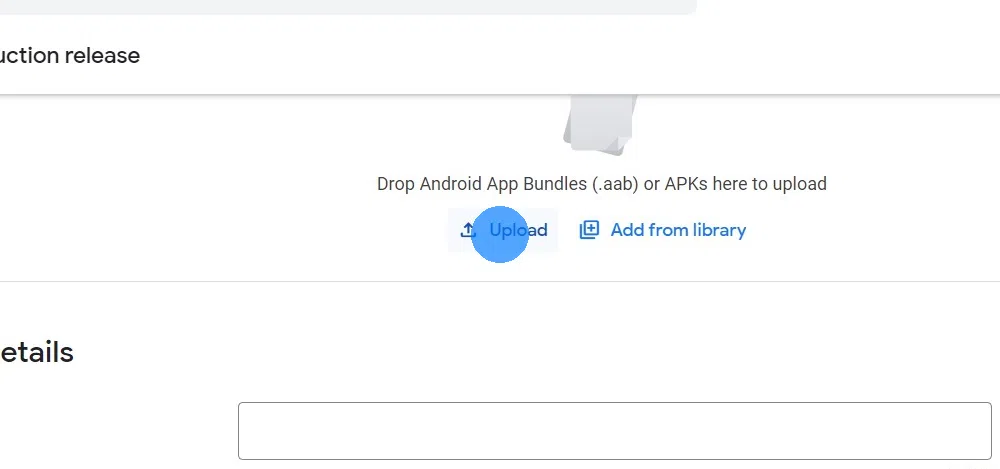
Upload the .aab file you just downloaded in the Google Play Console.

After uploading the file you should see it listed below the upload field.
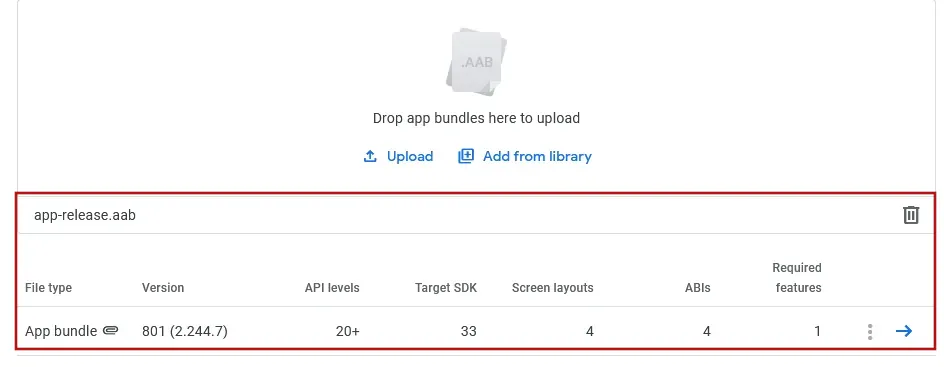
After uploading the file you should see something like this screenshot.
Click here if you see the error message "Version code x has already been used. Try another version code."

First, please reload the Google Play Console page and instead of uploading the app bundle again, click "Add from library" and select it there.

If you can't select the app bundle there either, click here to generate a new app bundle with a new version code. Building a new version will take a couple of minutes and afterwards you need to download the app bundle again using the download button from earlier in this guide.

Enter a description for the app release, for example "Initial release of the app.".
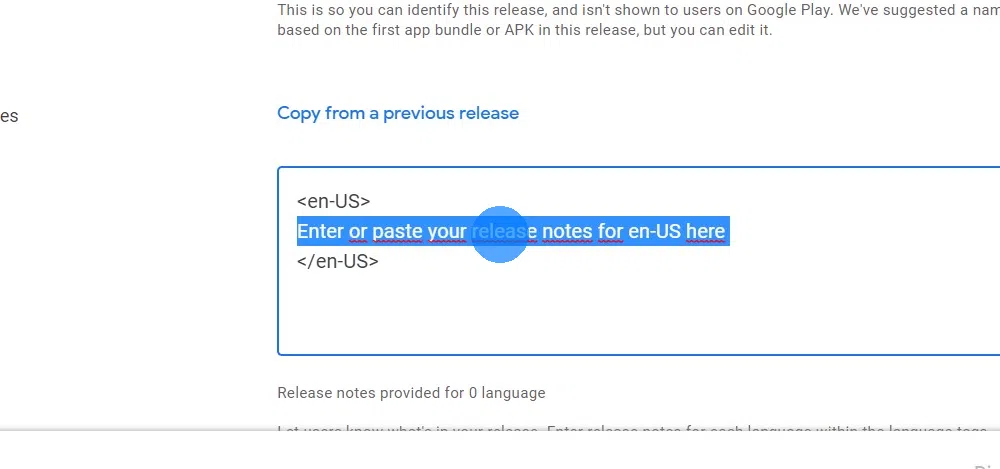
Enter a description for the app release, for example

Click "Next" or "Save" at the bottom right.

Click "Next" and "Save" at the bottom right.

Go to the publishing overview in the Google Play Console.

Submit the changes for review using the button at the top right.
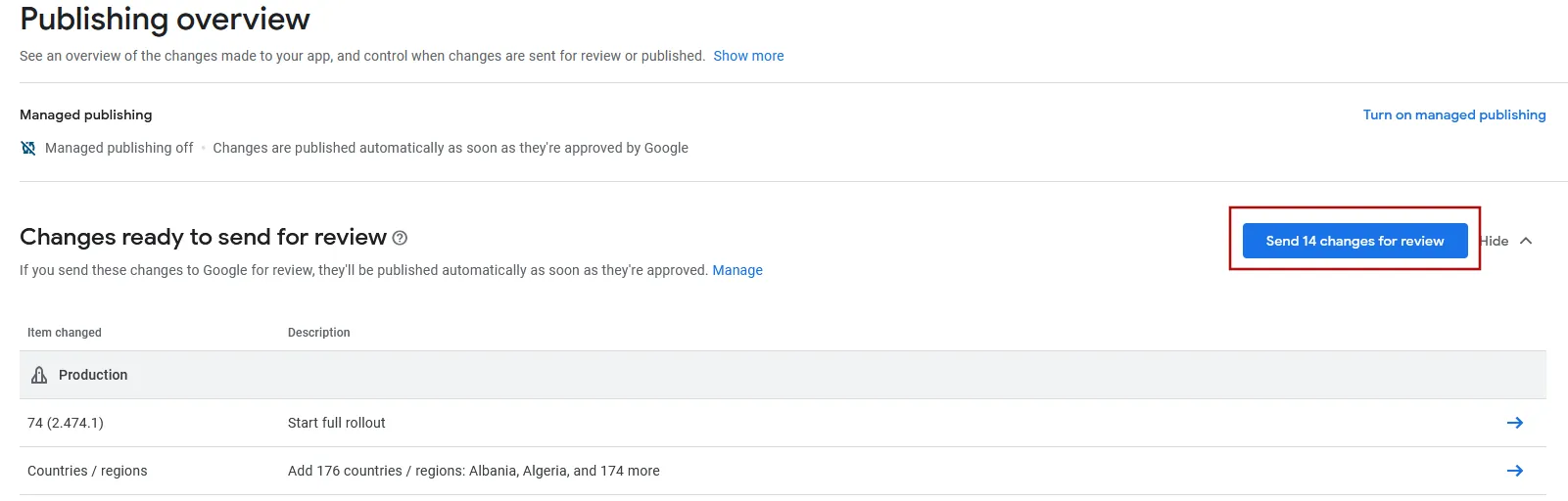
Don't click the "Turn on managed publishing" button, otherwise the app publishing process will be delayed.
A screenshot of the button to send the app for review.

After Google has reviewed your app (this can take a few days), testers can download the app using this link:

If, during the test, you see reports of errors in the app like in the following screenshot, you can ignore them, those are normal. If you actually see issues in your app, you can contact us of course.
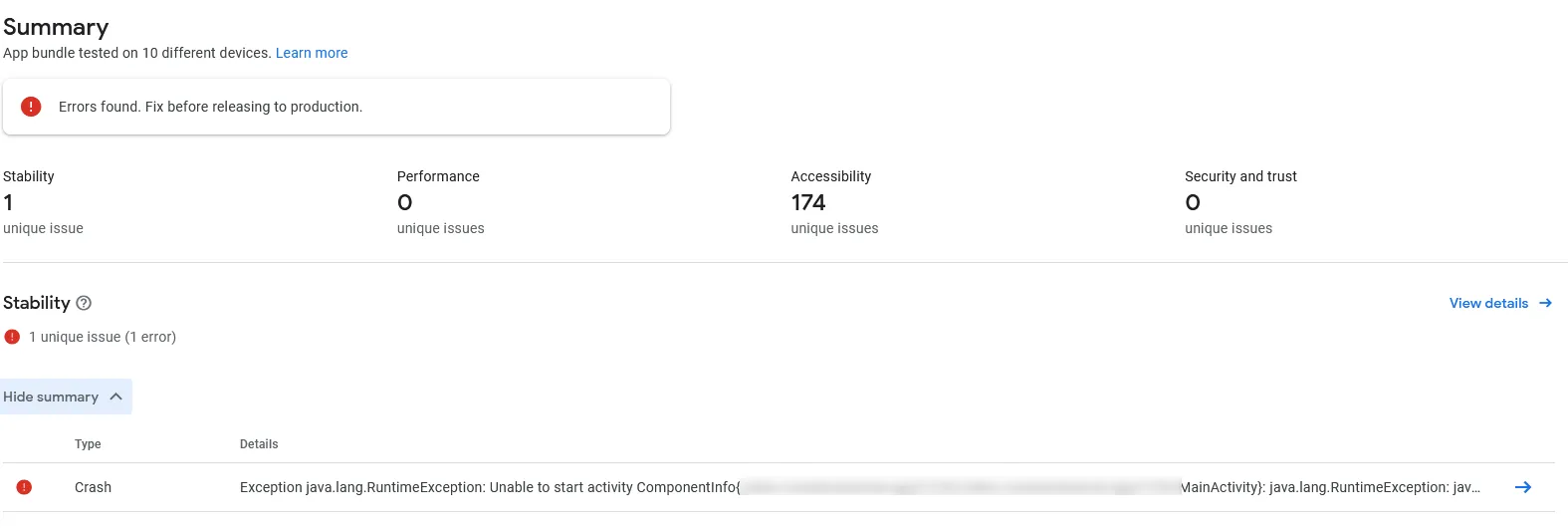
A screenshot of the Play Console showing an error.
I've completed all the steps in this guide

Once you've completed all the steps in this guide, please click this button so you can continue with the next guides.

Author Jan Bunk
Written by
Jan Bunk

With a background in computer science, Jan founded webtoapp.design in 2019 and developed the underlying software to convert websites into apps. With experience and feedback gathered from hundreds of published apps, he strives to write easy to follow guides that help you with everything related to app creation, publishing and maintenance.