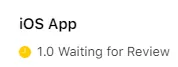
Apple rejected the app because it appears to be intended only for internal use at a specific business or organization.
To get your app published in the public App Store, explain to Apple who can use it beyond your own organization and highlight the features available to that audience. If your app does not yet offer public features, add them before submitting it again.
Explain That Your App Is Available to the Public
If people or other companies can sign up and use your app, tell Apple this explicitly. Explain who the app is designed for and how new users or companies can get access. For example, if your app provides a service that other businesses can sign up for, explain that it is available to those businesses and is not restricted to your own company's employees. This doesn't mean other companies/users need to be able to register an account inside the app, you can also tell Apple that these things are handled on a case by case basis, for example as part of individual enterprise contracts.
Highlight Your Public Features
Check which parts of your app are useful to people outside your organization. For example, your app might offer public articles, a blog, events, or services that anyone can sign up for. Focus on the features that give the public a reason to use your app.
Then check whether these features are easy to find when opening the app for the first time. If the app opens on an employee login page, the reviewer may not realize that public features are available elsewhere.
Add Public Features If Needed
If your app currently only offers internal features, add useful public features to your website and make them accessible in the app. For example, you could offer articles with advice for your industry, public events with registration, or a service that new customers and other companies can sign up for.
Make these features easy to find from the app's starting screen, and check that new users can access them without an employee account or an invitation from your organization. Then explain the additions to Apple and show how they make the app useful to a wider audience.
Explain the Public Features to Apple
Reply to Apple with a concrete explanation of who the app is for and how to access its public features. Include the following information:
- Who can use the app, including members of the public or other companies, and how they can get access.
- Which features are useful to that audience and what users can do with them.
- The exact steps to reach these features from the app's starting screen.
- Whether an account is needed and, if so, how members of the public can register. Provide review login credentials if needed.
Send Your Response to Apple
To send Apple a message, click "App Review".
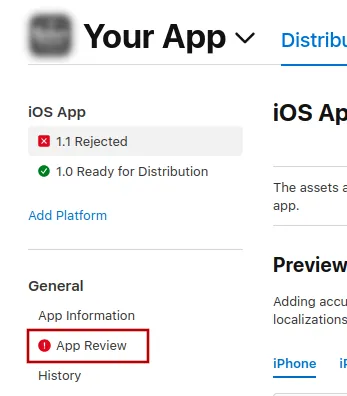
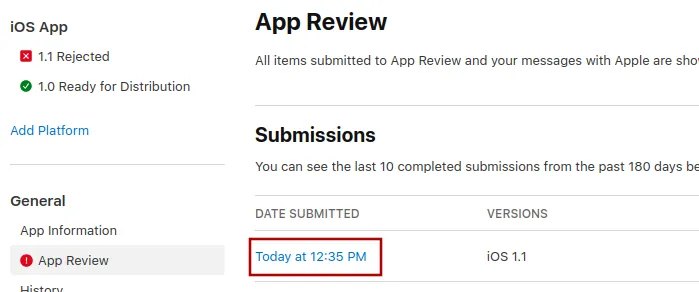
There, select the latest submission.
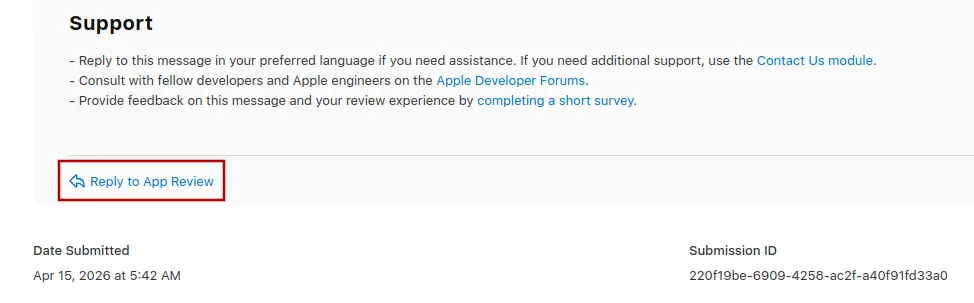
Now you can scroll to the bottom of Apple's rejection message and click "Reply to App Review" and write your message in the popup that opens.
Submitting the app for review again
If this was the last or only app rejection reason, please follow these steps to submit your app for review again:
Go to the version page by clicking "Distribution" at the top of your screen or the version number in the menu on the left.

Now click the "Update Review" button at the top right.
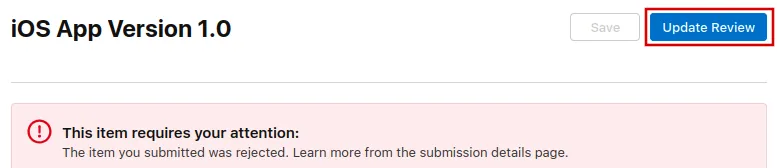
Afterwards, click "Resubmit to App Review" on the next page that opens.

It should then say "Waiting for Review".