Apple rejected the app because it found paid digital content, services, subscriptions, or membership access in the app, but this content is not available for purchase through Apple's In-App Purchase system.
There are two possible ways to resolve this issue. Either you integrate in app purchases, or you change your app so it qualifies for an exemption.
Option 1: Integrating In App Purchases
If users can buy digital content, memberships, subscriptions, or app features on your website, Apple normally requires that the same items are also available in the iOS app using In-App Purchase.
This can apply to paid memberships, digital courses, premium articles, videos, downloads, paid communities, or premium app features.
To resolve the rejection this way, add Apple In-App Purchase for the relevant membership, subscription, or digital content before resubmitting the app. Our In-App Purchase integration guide explains the technical setup.
You can reply to Apple with this message:
Thank you for the review. We understand that paid digital content or memberships accessed in the app must be available through Apple In-App Purchase. We have updated the app to include In-App Purchase for the relevant membership, subscription, or digital content before resubmitting.
Option 2: Possible Exemptions
Access Is Only Sold to Organizations
This is one of the most versatile exceptions. If you tell Apple that your app is only sold to organizations as part of enterprise contracts, your existing users are allowed to access paid content inside the app even though it's not available through in-app purchases. Of course this means that there can be no other way to purchase inside the app either (and outside of the app too - since you told Apple you only sell to organizations, your website shouldn't allow individual users to purchase anything - Apple almost never checks that though).
This guide explains the different ways to hide parts of your website inside the app.
You can reply to Apple with this message:
We only sell to organizations and don't offer purchases for individual users inside the app. Thus the app is considered an enterprise service as per section 3.1.3(c) of Apple's App Review Guidelines and doesn't need to offer in app purchases.If the App Only Provides Previously Purchased Reader Content
Apple has a reader app exception for apps that let users access previously purchased text (books, newspapers, articles, ...), video (movies, video courses, ...) and audio (audiobooks, music, ...) content.
This option only works if the app does not contain payment buttons, pricing, checkout pages, upgrade prompts, or calls to action that tell users to purchase elsewhere.
So if your app's content falls under the categories above, remove all purchase-related elements and explain to Apple that users only access previously purchased reader content. This guide explains the different ways to hide parts of your website inside the app.
You can reply to Apple with this message:
The app is a reader app under section 3.1.3(a) of Apple's App Review Guidelines. Users can access previously purchased content, and the app does not allow for purchasing new content.If Payments Are for Physical Goods or Offline Services
Payments for physical goods or services consumed outside the app must not use In-App Purchase. This can include physical products, food delivery, in-person events, bookings, repairs, appointments, or offline classes.
You can reply to Apple with this message:
The payments in the app are for physical goods or services consumed outside the app as per section 3.1.3(e) of Apple's App Review Guidelines. The app does not sell digital content, digital subscriptions, or digital app features.If Payments Are for One-to-One Services
Apple allows non-In-App-Purchase payments for real-time person-to-person services between two individuals, such as one-to-one tutoring, consultations, personal coaching, medical consultations, real estate tours, or individual fitness training.
This does not apply to group classes, one-to-many sessions, prerecorded content, or general memberships.
So if you can present your service as a one-to-one service, reply to Apple with this message:
The paid service offered through the app is a real-time person-to-person service under section 3.1.3(d) of Apple's App Review Guidelines and therefore doesn't need to use in-app purchases.If the App Is a Free Companion to a Web-Based Tool
Free apps that act as a stand-alone companion to a paid web-based tool may avoid In-App Purchase if there is no purchasing inside the app and no calls to action for purchasing outside the app.
This can apply to web-based tools such as cloud storage, email services, web hosting, VoIP, or similar software services. Just make sure you hide the option to purchase anything inside the app as explained here.
You can reply to Apple with this message:
The app is a free stand-alone companion to our paid web-based service under section 3.1.3(f) of Apple's App Review Guidelines. Therefore it doesn't need to offer in app purchases.Sending Your Response to Apple
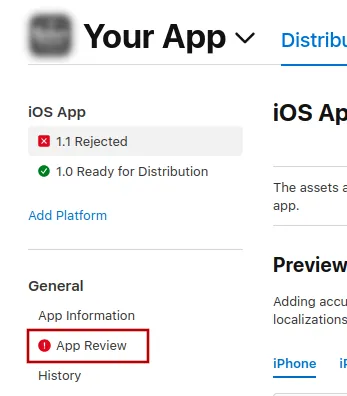
To send Apple a message, click "App Review".
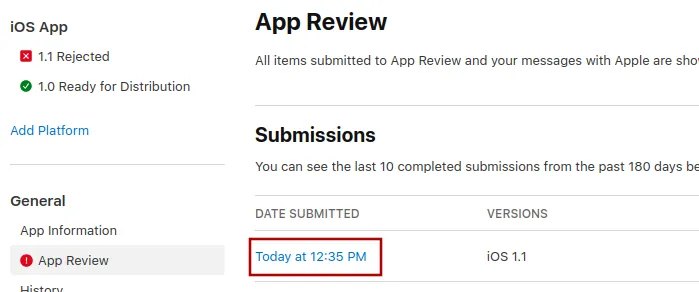
There, select the latest submission.
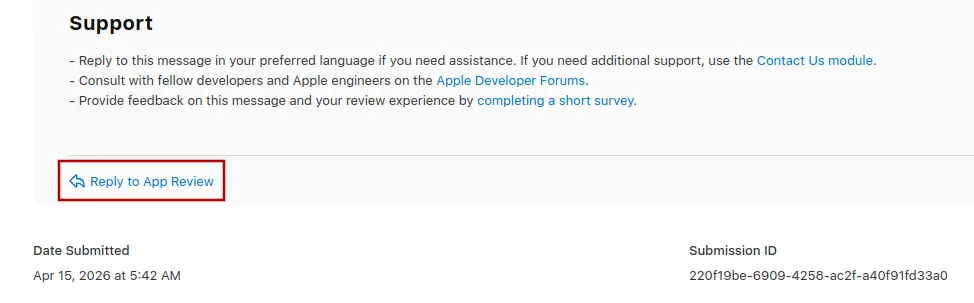
Now you can scroll to the bottom of Apple's rejection message and click "Reply to App Review" and write your message in the popup that opens.
Submitting the app for review again
If this was the last or only app rejection reason, please follow these steps to submit your app for review again:
Go to the version page by clicking "Distribution" at the top of your screen or the version number in the menu on the left.

Now click the "Update Review" button at the top right.
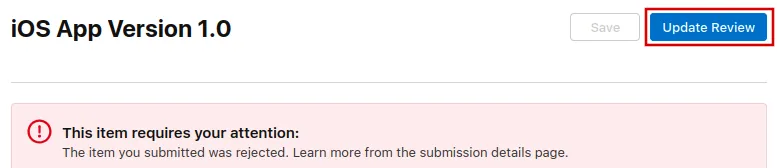
Afterwards, click "Resubmit to App Review" on the next page that opens.

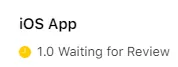
It should then say "Waiting for Review".