Certain types of apps can only be published in the Google Play Store by organizations. This applies to apps providing financial services, health apps and government apps. Your app was rejected because Google thinks it belongs into one of those categories, but you're using a personal developer account.
Correcting the App Categorization
First, think about whether the app is really related to one of those sectors. If it is, continue with converting your individual developer account to an organization account. If not, correct the declarations in the Google Play Console as follows:
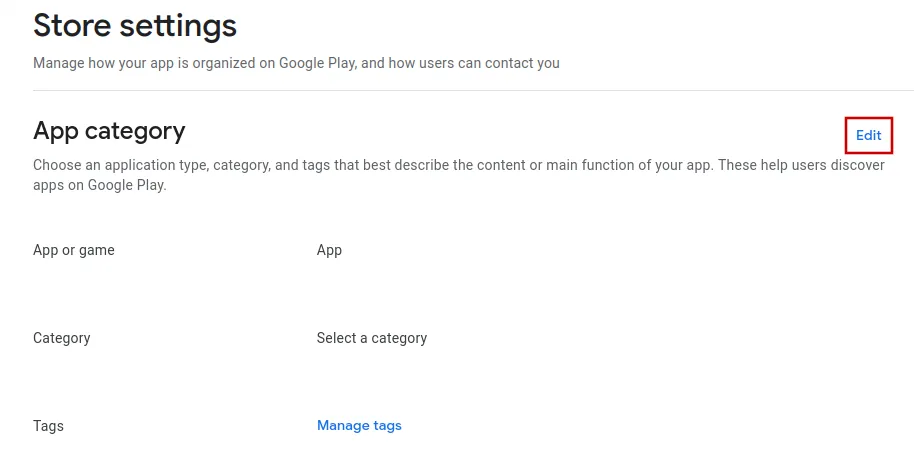
Store Settings
Open the "Store Settings" page in the Google Play Console.Click "Edit" at the top right.
Select a category that is not "Medical" or "Health & Fitness" and then click the save button at the bottom right.
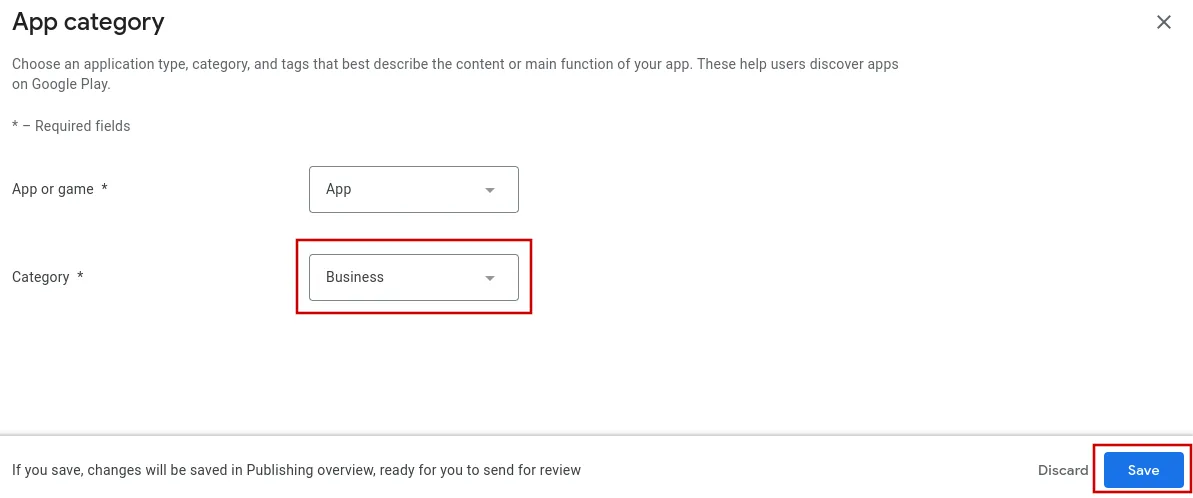
Afterwards, click "Save and publish".
Government apps
Open the government apps page in the Google Play Console.
Since government apps can only be published in organizational developer accounts, you need to select "No".
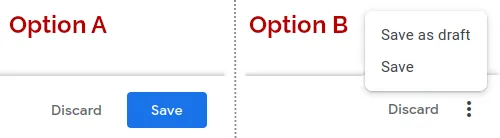
Click the "Save" button at the bottom right. Depending on your device's screen size, it might be hidden in the overflow menu with the three dots.
Financial features
Open the financial features page in the Google Play Console.
Apps with financial features can only be published in organizational accounts, so you need to select "My app doesn't provide any financial features".
Click "Next" at the bottom right.
Click the "Save" button at the bottom right. Depending on your device's screen size, it might be hidden in the overflow menu with the three dots.
Health apps
Open the health apps page in the Google Play Console.
Apps with health features can only be published in organizational accounts, so you need to select "My app does not have any health features".
Click the "Save" button at the bottom right. Depending on your device's screen size, it might be hidden in the overflow menu with the three dots.
Convert your Google Play Developer Account to a Business Account
If your app actually contains financial or health features and you have a company, then the right solution is to convert your personal developer account into an organization account. Google lets you do that directly inside the Play Console. The account owner must complete the process.
Begin by opening the "About You" section of your developer account.
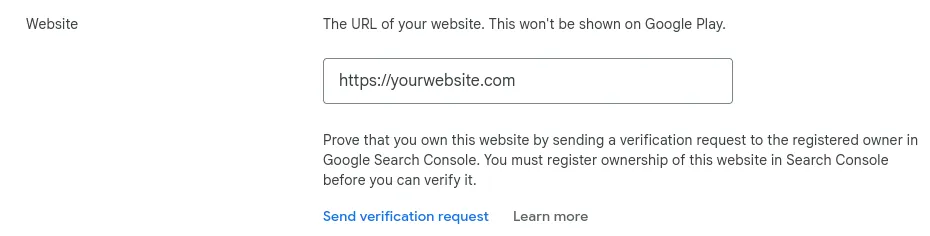
Click "Change account type".
Next click Create or Select payments profile.
If you already have a payments profile with your organization's information, select it and continue. Otherwise create a new payments profile.
When creating a new payments profile you must provide your organization’s D-U-N-S number. You can follow this guide to find or request your D-U-N-S number.
Next you must enter details about your organization like organization type (typically "Company or business") and the number of employees.
You'll also need to provide a contact e-mail address and phone number that must each be verified.
Save the payment profile.
Lastly, you might need to verify the identity of the business before you can publish apps again.
Submitting the app for review again
If this was the last or only app rejection reason, please follow these steps to submit your app for review again:
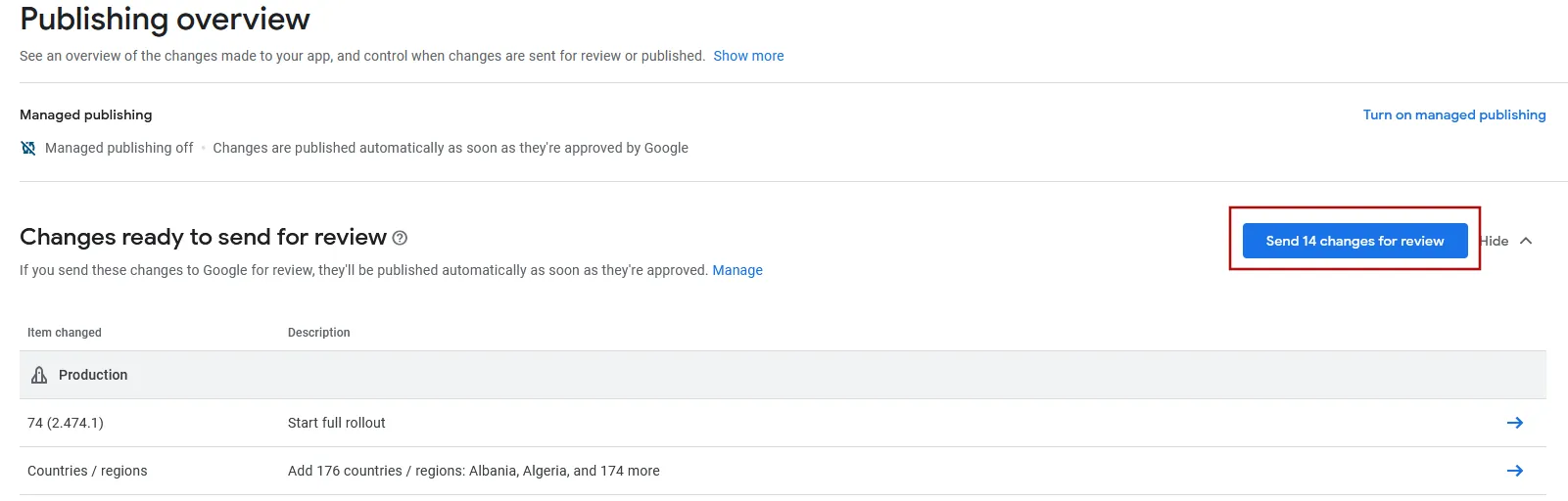
Go to the publishing overview in the Google Play Console.
Submit the changes for review using the button at the top right.