You can move an existing webtoapp.design app to another Apple Developer account without un- and republishing it in the App Store. The app keeps its ratings and reviews and existing users can continue receiving updates.
This guide covers the steps that are necessary for an app created with webtoapp.design.
Before You Start
The account holder of the old developer account must initiate the transfer, and the account holder of the new developer account must accept it. Before continuing, make sure:
- Neither Apple Developer account is in a pending or changing state.
- Both account holders have accepted the latest version of all applicable paid and free apps agreements in App Store Connect.
- The new account's Apple Developer Program membership is active so the next app update can be prepared and submitted.
- The app has at least one version that was released on the App Store.
- The app is not in review, waiting for release, processing for distribution, or available for pre-order.
- You have backed up any app information, sales reports, and other data you want to keep from the old account.
- You know the Apple Account e-mail address of the account holder of the new developer account.
Find the New Developer Account Team ID
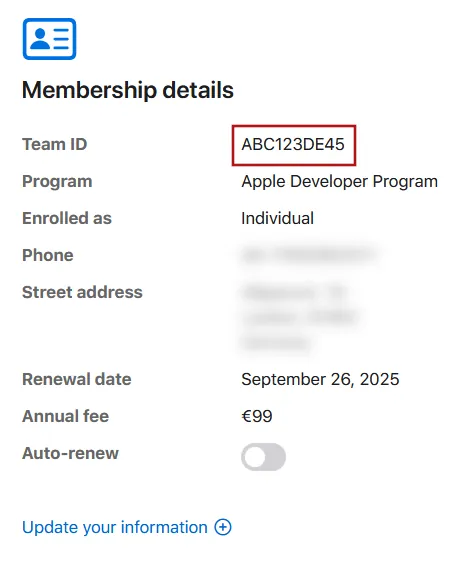
Sign in to the new Apple Developer account and open the Apple Developer account overview page.
Scroll down to the Membership details. Write down the unique 10-character Team ID. You will need it during the transfer.
Initiate the App Transfer From the Old Account
Sign in to App Store Connect as the account holder of the old developer account.
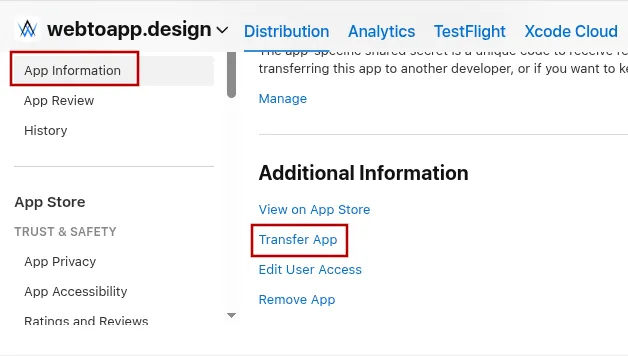
Select your app and click "App Information" in the sidebar. Scroll down to "Additional Information" and click "Transfer App".
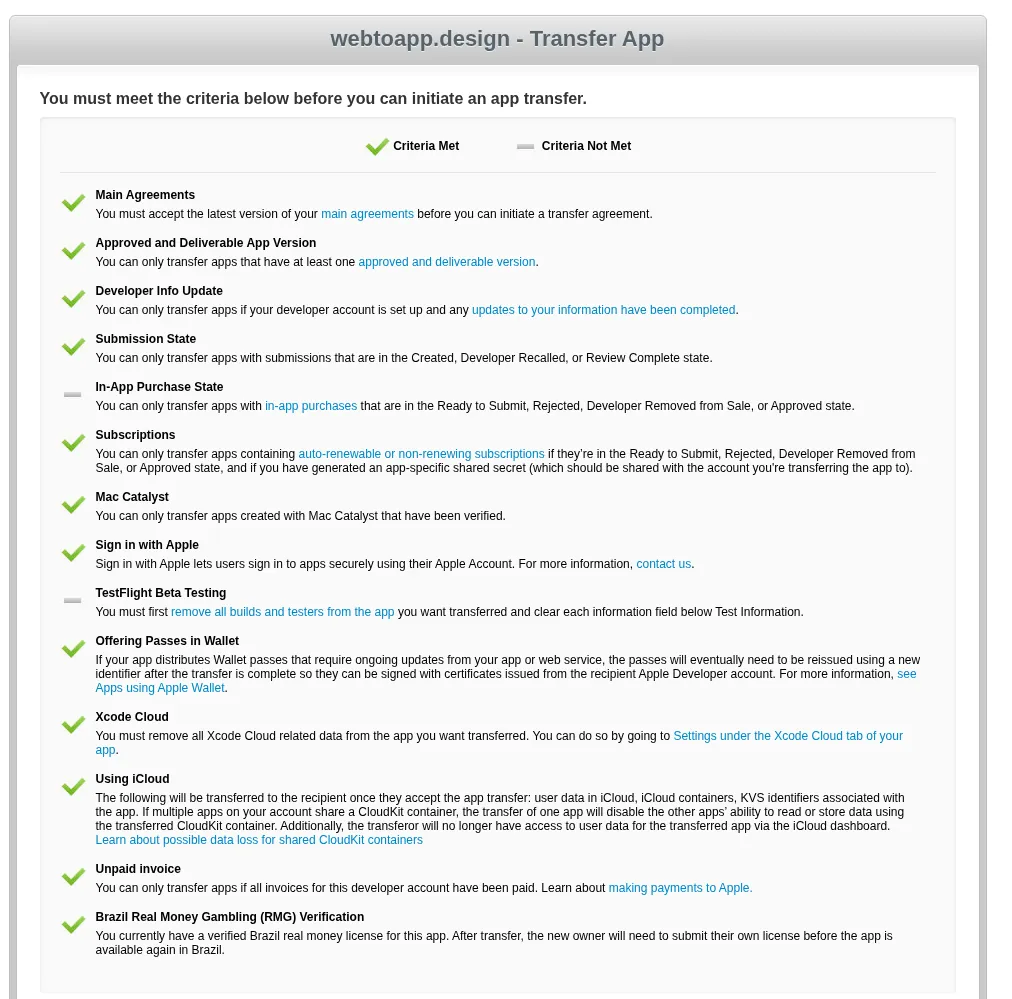
Next, App Store Connect will check the transfer criteria. Go through each requirement until they're fulfilled. Then click "Continue".
Afterwards, enter the Apple Account e-mail address of the account holder of the new developer account and the new account's Team ID. Then click "Continue".
Review the transfer details and terms. Select the agreement checkbox and click "Request Transfer".
The app now has the status "Pending App Transfer". The receiving account holder must accept the transfer within 60 days.
Remove the Image Notification App Identifier From the Old Account
webtoapp.design apps use an additional App ID for push notification. This App ID doesn't get transferred automatically. You must remove it from the old developer account so we can register the same identifier in the new account again.
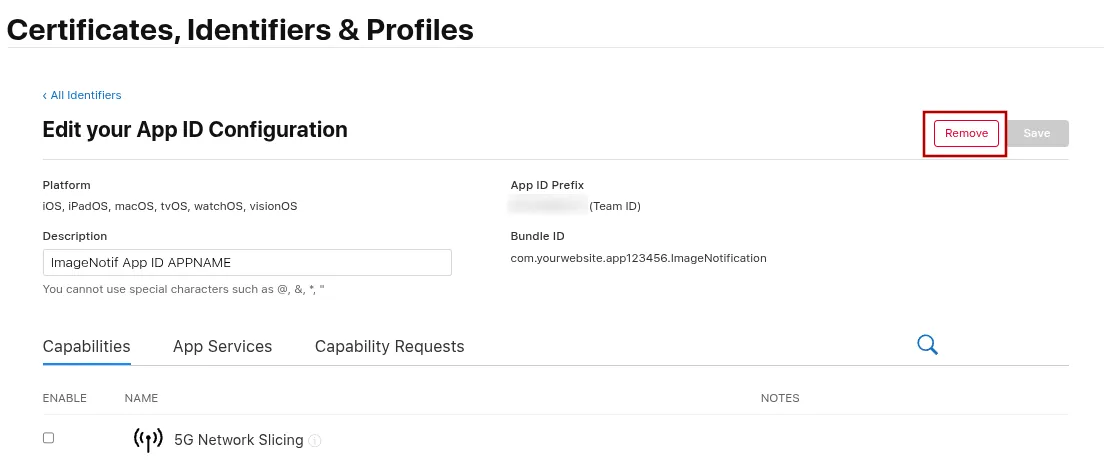
Select "Identifiers" and find the image notification identifier. Its name usually begins with "ImageNotif App ID", and its identifier is your app's bundle ID followed by ".ImageNotification".
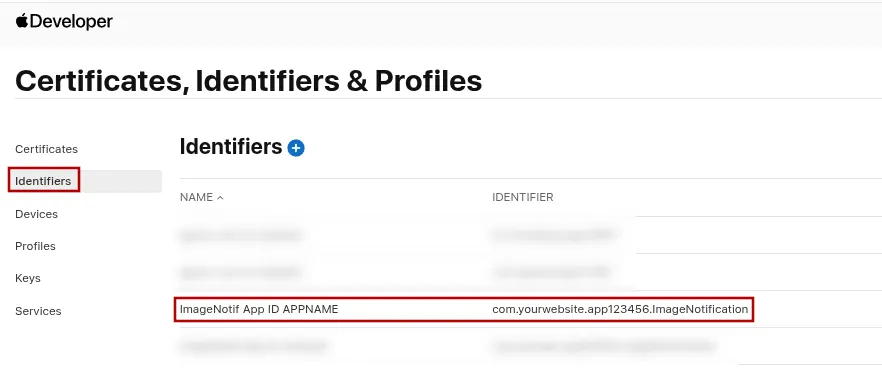
Open the image notification identifier, click "Remove" at the top right, and confirm the removal.
Accept the Transfer in the New Account
In the Agreements section, find the app transfer notice. Under "App Transfers", click "Review".
Review and update the requested metadata, contact information, user access, and app privacy details. Read the transfer terms, select the agreement checkbox, and click "Accept".
Apple says the transfer can take up to two business days. When it is complete, both account holders receive a notification and the app appears in the new App Store Connect account.
Tell Us About the New Developer Account
Please contact us with the following information:
- The name of your app
- The exact name of the new Apple Developer account
- The new account's 10-character Team ID
- A short confirmation that the transfer is complete and that you removed the image notification App ID from the old account
We will connect your app to the new developer account in our system. Please wait for our confirmation before starting the update.
Initiate an iOS App Update
After we confirm the account change, open your webtoapp.design app dashboard and click "Create Update" for the Apple App Store. The update process guides you through granting us access to the new developer account and will re-register the image notification App ID.